> ## Documentation Index
> Fetch the complete documentation index at: https://utter.to/docs/llms.txt
> Use this file to discover all available pages before exploring further.
# Modes (AI Prompts)
> Transform your voice into emails, notes, summaries, and custom formats
Use a Mode to control how Utter formats your transcription. A Mode is an AI prompt plus output rules, such as "Email", "Summary", or your own custom format.
 ## Built-in Modes
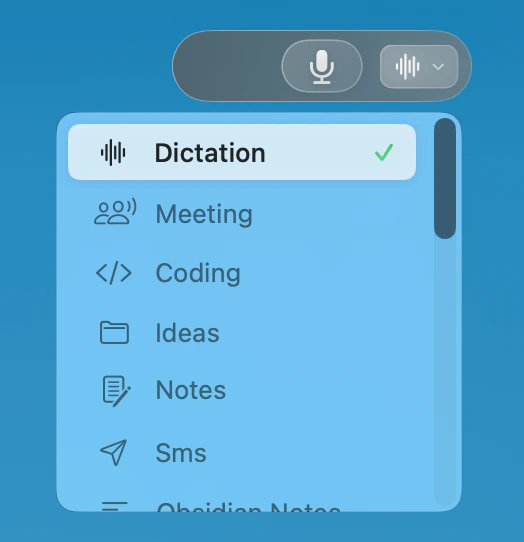
Utter includes built-in modes for common tasks:
Formats your dictation as a professional email with subject line, greeting, body, and signature
Creates clean, organized notes with bullet points and headers
Condenses your speech into key points and takeaways
Formats as a casual message suitable for chat apps
## Use a Mode
### Quick Selection
Press your global shortcut.
Dictate your content.
Before releasing, click a mode in the recording window, or use its shortcut.
**What to expect:** Your transcription is processed using the selected mode format.
### Keyboard Shortcuts
Assign keyboard shortcuts to your favorite modes for faster access:
Go to **Settings > Modes**.
Click the shortcut field next to a mode.
Press your desired key combination.
## Example: Email Mode
```
Send an email to Sarah about the quarterly report.
Hey Sarah, I finished reviewing the Q3 numbers and
everything looks good. Revenue is up 15% and we hit
all our targets. Let's discuss in our meeting tomorrow.
```
```
Subject: Q3 Quarterly Report Review
Hi Sarah,
I finished reviewing the Q3 numbers and everything
looks good. Revenue is up 15% and we hit all our
targets.
Let's discuss in our meeting tomorrow.
Best,
[Your name]
```
## Custom Modes
Create your own modes for specialized use cases.
### Create a Custom Mode
Click Utter in the menu bar to open the main window
Click the **+** button next to **Modes**.
Enter a name, description, and mode instructions.
**What to expect:** The new mode appears in your mode list and can be selected before dictation.
## Built-in Modes
Utter includes built-in modes for common tasks:
Formats your dictation as a professional email with subject line, greeting, body, and signature
Creates clean, organized notes with bullet points and headers
Condenses your speech into key points and takeaways
Formats as a casual message suitable for chat apps
## Use a Mode
### Quick Selection
Press your global shortcut.
Dictate your content.
Before releasing, click a mode in the recording window, or use its shortcut.
**What to expect:** Your transcription is processed using the selected mode format.
### Keyboard Shortcuts
Assign keyboard shortcuts to your favorite modes for faster access:
Go to **Settings > Modes**.
Click the shortcut field next to a mode.
Press your desired key combination.
## Example: Email Mode
```
Send an email to Sarah about the quarterly report.
Hey Sarah, I finished reviewing the Q3 numbers and
everything looks good. Revenue is up 15% and we hit
all our targets. Let's discuss in our meeting tomorrow.
```
```
Subject: Q3 Quarterly Report Review
Hi Sarah,
I finished reviewing the Q3 numbers and everything
looks good. Revenue is up 15% and we hit all our
targets.
Let's discuss in our meeting tomorrow.
Best,
[Your name]
```
## Custom Modes
Create your own modes for specialized use cases.
### Create a Custom Mode
Click Utter in the menu bar to open the main window
Click the **+** button next to **Modes**.
Enter a name, description, and mode instructions.
**What to expect:** The new mode appears in your mode list and can be selected before dictation.
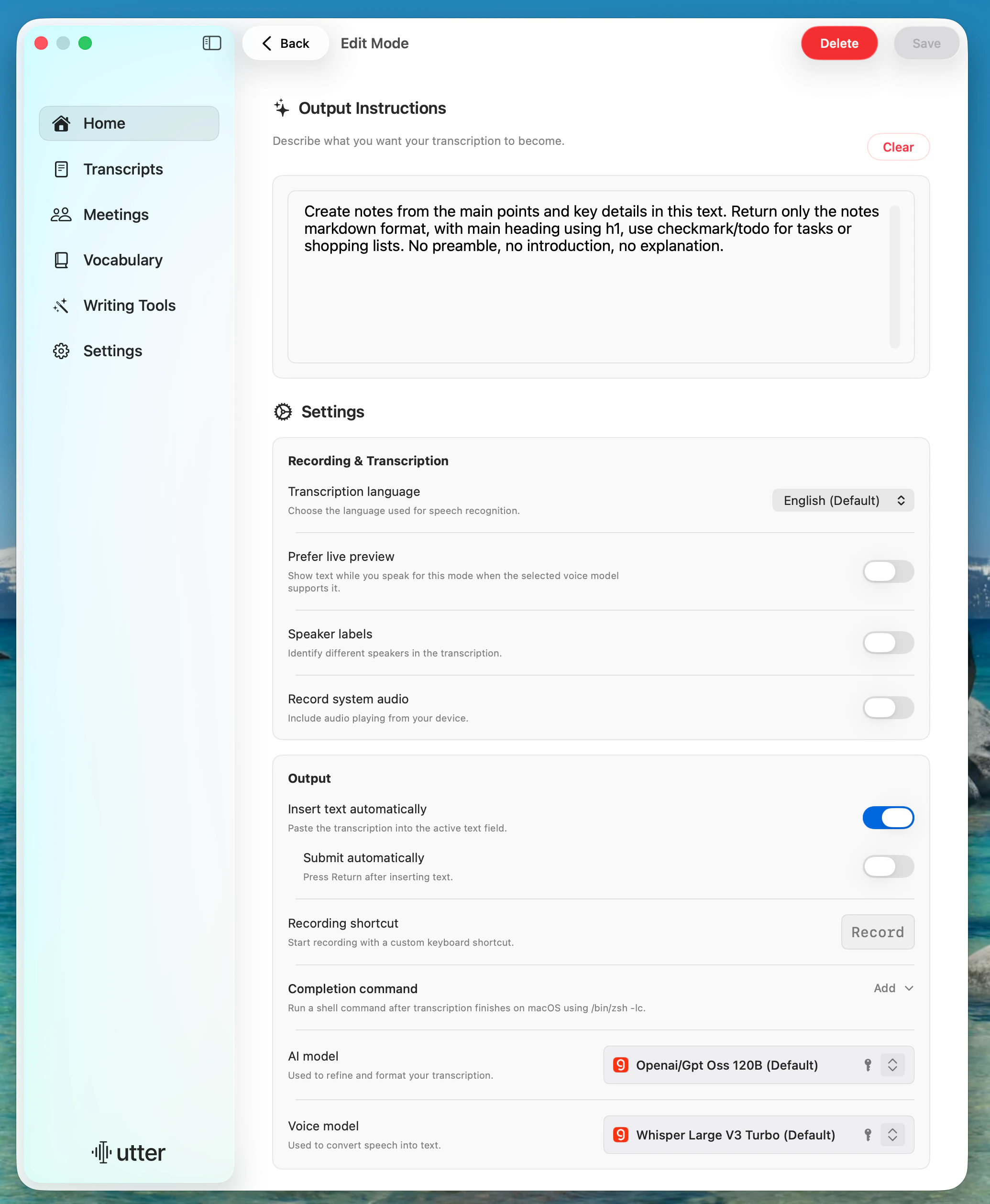 ### Write Better Mode Instructions
Good mode instructions are:
| Do | Don't |
| ----------------------------------- | ------------------------------ |
| Be specific about the output format | Be vague ("make it better") |
| Include examples if helpful | Write overly long instructions |
| Specify tone and style | Assume context |
### Example Custom Mode Instructions
```
Convert this into a Twitter thread. Each tweet should be
under 280 characters. Number each tweet (1/, 2/, etc).
Make it engaging and add relevant line breaks.
```
```
Format as meeting notes with:
- Date and attendees at top
- Key discussion points as bullets
- Action items clearly marked with owners
- Next steps at the bottom
```
```
Format as a Slack message. Keep it casual but professional.
Use emoji sparingly. Break into short paragraphs.
```
## Mode Shortcuts
Set a custom keyboard shortcut for any mode to start dictating immediately with that specific mode active.
Click Utter in the menu bar to open the main window
Click on a mode to edit it
Click the shortcut field and press your desired key combination
When you press the shortcut, Utter will start recording with that mode already selected, so your transcription is automatically processed through it.
## Tips
Start with a built-in mode, duplicate it, then adjust the instructions to match your workflow.
Mode output is AI-generated, so results can vary. If you need strict formatting, use explicit instructions.
### Write Better Mode Instructions
Good mode instructions are:
| Do | Don't |
| ----------------------------------- | ------------------------------ |
| Be specific about the output format | Be vague ("make it better") |
| Include examples if helpful | Write overly long instructions |
| Specify tone and style | Assume context |
### Example Custom Mode Instructions
```
Convert this into a Twitter thread. Each tweet should be
under 280 characters. Number each tweet (1/, 2/, etc).
Make it engaging and add relevant line breaks.
```
```
Format as meeting notes with:
- Date and attendees at top
- Key discussion points as bullets
- Action items clearly marked with owners
- Next steps at the bottom
```
```
Format as a Slack message. Keep it casual but professional.
Use emoji sparingly. Break into short paragraphs.
```
## Mode Shortcuts
Set a custom keyboard shortcut for any mode to start dictating immediately with that specific mode active.
Click Utter in the menu bar to open the main window
Click on a mode to edit it
Click the shortcut field and press your desired key combination
When you press the shortcut, Utter will start recording with that mode already selected, so your transcription is automatically processed through it.
## Tips
Start with a built-in mode, duplicate it, then adjust the instructions to match your workflow.
Mode output is AI-generated, so results can vary. If you need strict formatting, use explicit instructions.