> ## Documentation Index
> Fetch the complete documentation index at: https://utter.to/docs/llms.txt
> Use this file to discover all available pages before exploring further.
# Auto-Export of Transcripts
> Automatically save each transcript as text or Markdown files, with optional folders for each mode.
Turn on auto-export to save every completed transcript as a local **.txt** or **.md** file.\
If you enable **Group by Mode**, Utter saves each mode in its own folder.
## Set Up Auto-Export
Go to **Settings → General → Local Files**.
Turn on **Automatically export transcriptions**.
Click **Export location** and choose a folder.
In **Local Files**, click **Export format**.
Select **Markdown (.md)** or **Plain Text (.txt)**.
Enable **Group by Mode** to keep each mode in a separate folder.
Click **Save**.
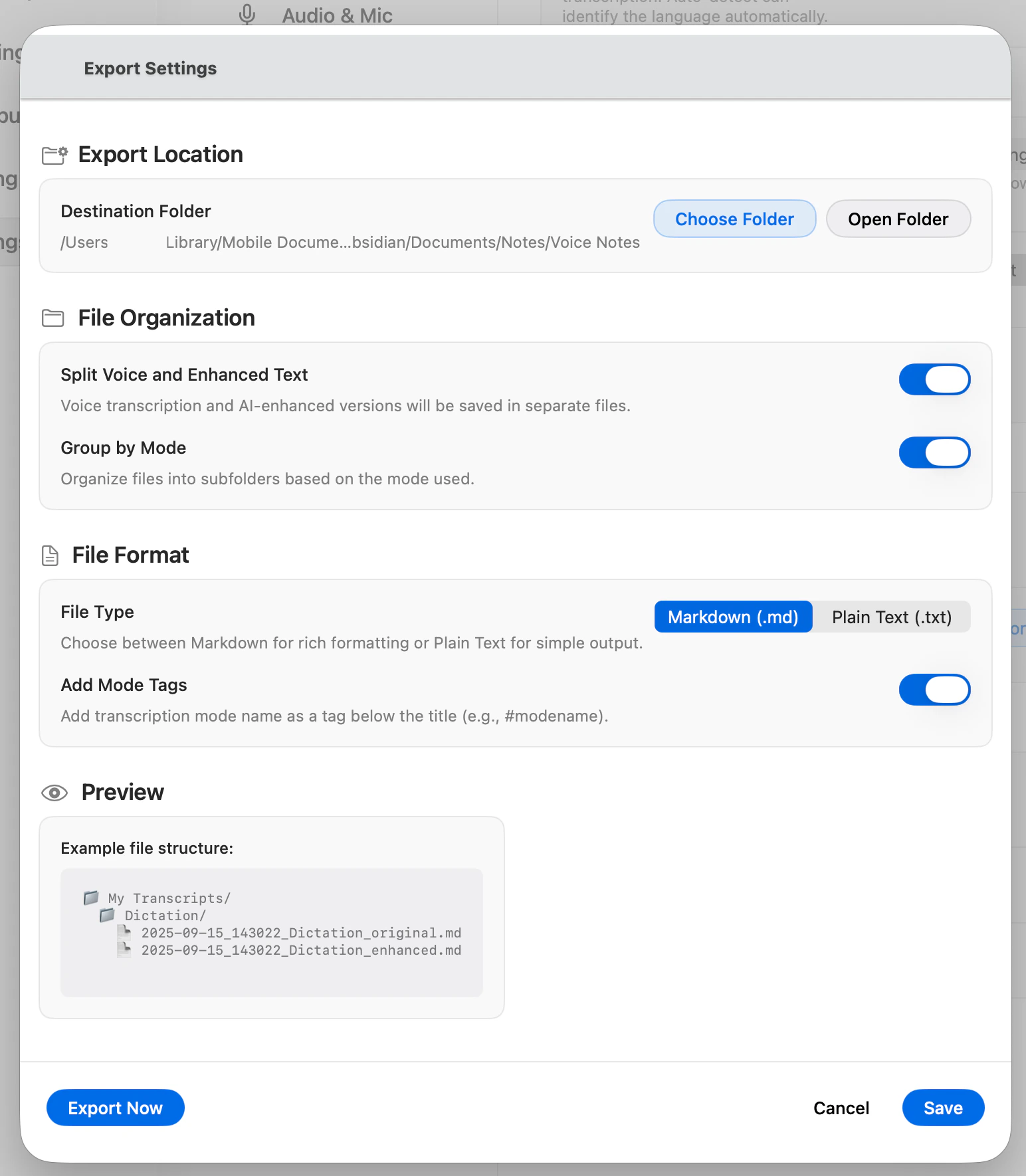 ## Example Folder Layout
With **Group by Mode** enabled, your export folder can look like this:
```text theme={null}
Transcripts/
Email/
Voice to Text/
Meeting Notes/
```
## Export Older Transcripts
In **Settings → General → Local Files**, click **Export now** to export transcripts you already recorded before turning this on.
## What To Expect
* New transcripts are saved automatically after recording finishes.
* Files are saved as the format you selected: **.md** or **.txt**.
* If **Group by Mode** is enabled, each mode is saved in its own folder.
* If you edit a transcript later in Utter, exported files are updated to match.
## If Files Do Not Appear
1. Confirm **Automatically export transcriptions** is enabled.
2. Confirm the export folder is still accessible.
3. Click **Export now** to force a sync.
## Example Folder Layout
With **Group by Mode** enabled, your export folder can look like this:
```text theme={null}
Transcripts/
Email/
Voice to Text/
Meeting Notes/
```
## Export Older Transcripts
In **Settings → General → Local Files**, click **Export now** to export transcripts you already recorded before turning this on.
## What To Expect
* New transcripts are saved automatically after recording finishes.
* Files are saved as the format you selected: **.md** or **.txt**.
* If **Group by Mode** is enabled, each mode is saved in its own folder.
* If you edit a transcript later in Utter, exported files are updated to match.
## If Files Do Not Appear
1. Confirm **Automatically export transcriptions** is enabled.
2. Confirm the export folder is still accessible.
3. Click **Export now** to force a sync.