> ## Documentation Index
> Fetch the complete documentation index at: https://utter.to/docs/llms.txt
> Use this file to discover all available pages before exploring further.
# Meeting Recordings
> Record meetings with live speaker-labeled transcripts, notes, AI chat, and custom meeting note templates.
Use Meeting Recordings to capture a meeting, follow the live transcript, take notes, ask AI questions, and generate structured meeting notes.
## Start a Meeting Recording
In Utter, go to **Meetings**.
Start a new meeting recording from the meeting page.
You can also start a recording with **Meeting mode** selected.
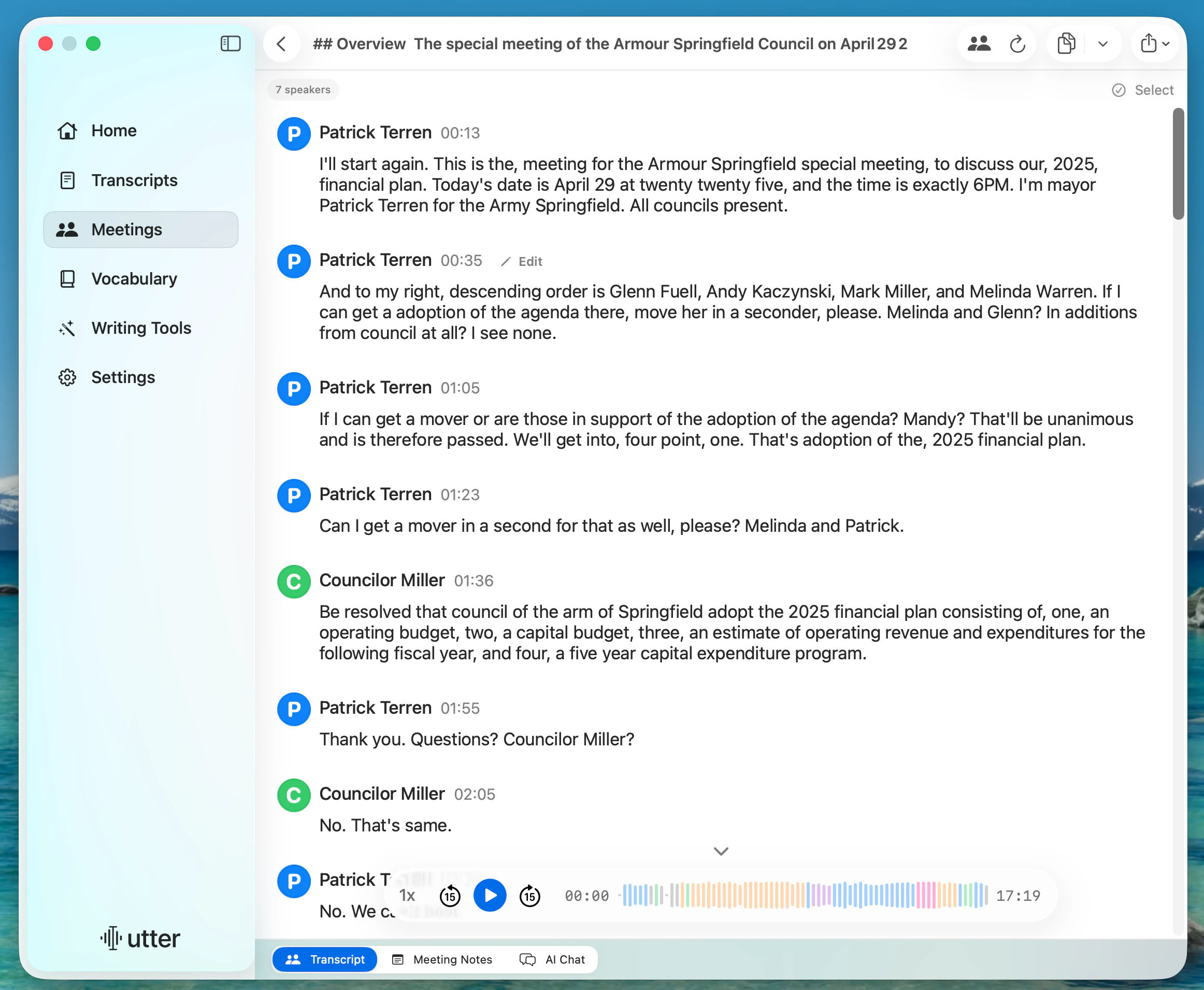
Use the **Transcript**, **Notes**, and **AI Chat** tabs while the meeting is happening.
 ## Follow the Live Speaker-Labeled Transcript
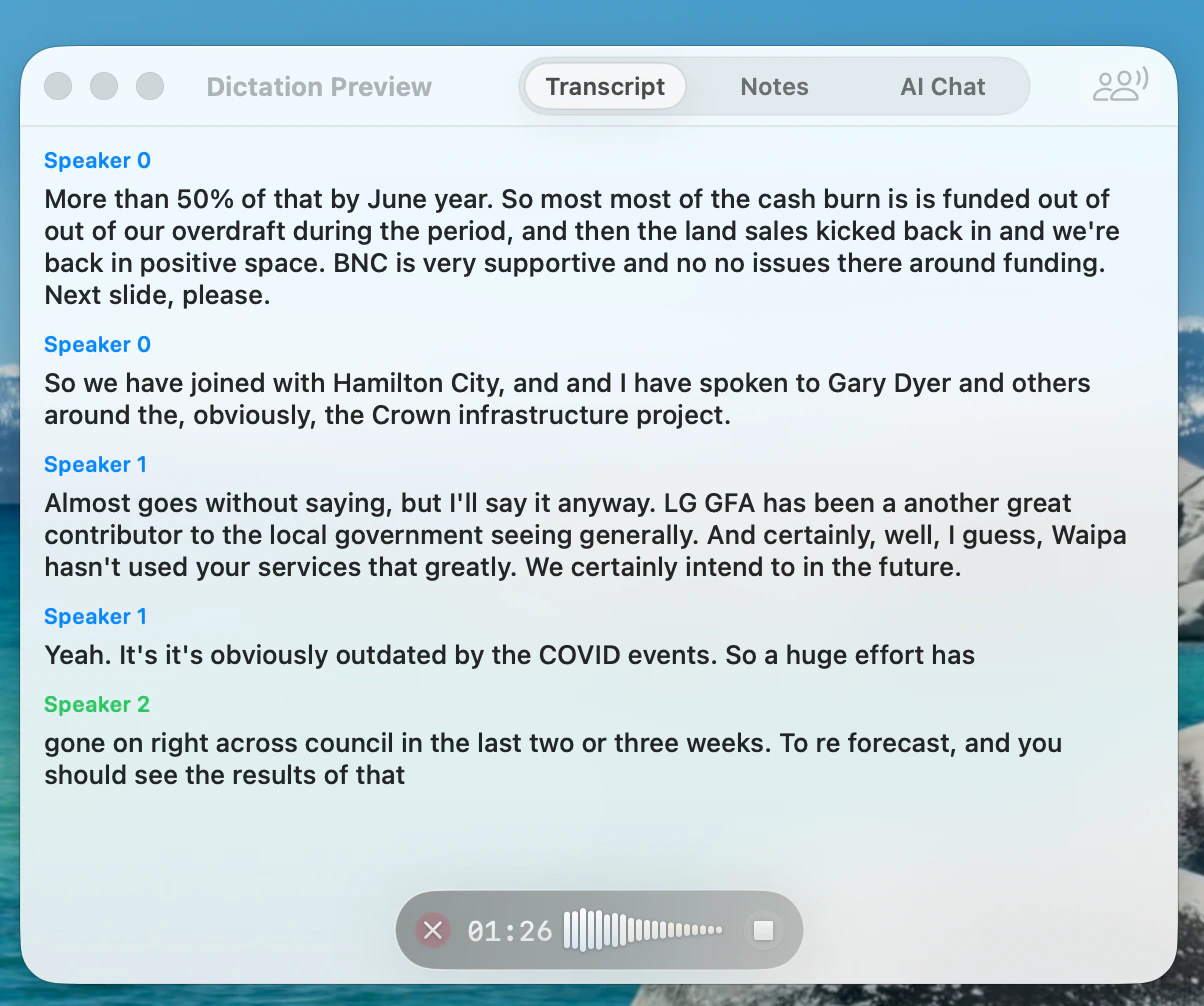
The **Transcript** tab shows what people are saying in real time. Speaker labels separate each person, so you can scan who said what during the meeting.
Speaker labels work best when each person has clear audio and speakers do not talk over each other.
## Take Notes During the Meeting
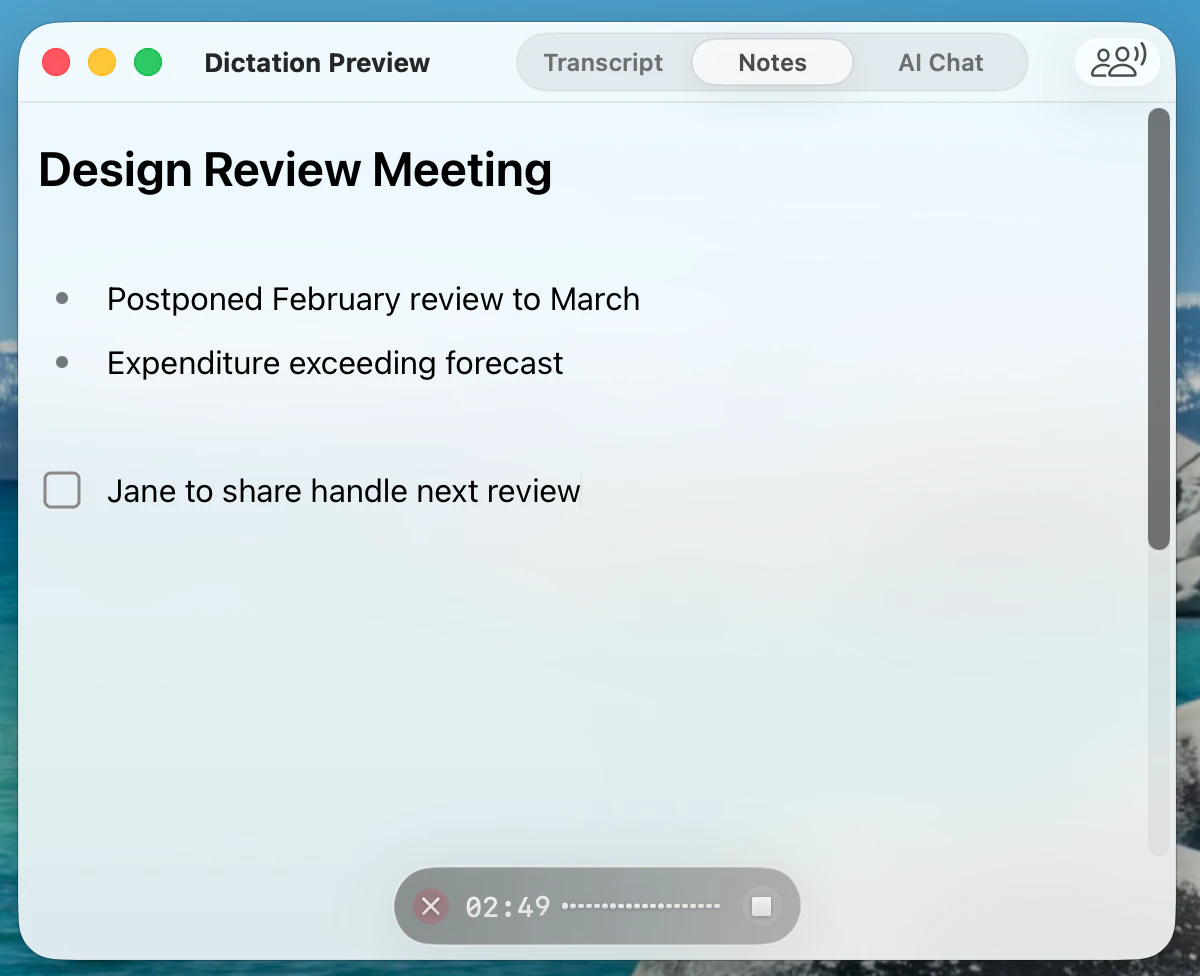
Open **Notes** to keep a scratchpad beside the recording. Use it for decisions, follow-ups, action items, or anything you want to remember before the final notes are generated.
## Follow the Live Speaker-Labeled Transcript
The **Transcript** tab shows what people are saying in real time. Speaker labels separate each person, so you can scan who said what during the meeting.
Speaker labels work best when each person has clear audio and speakers do not talk over each other.
## Take Notes During the Meeting
Open **Notes** to keep a scratchpad beside the recording. Use it for decisions, follow-ups, action items, or anything you want to remember before the final notes are generated.
 ## Ask AI Chat About the Meeting
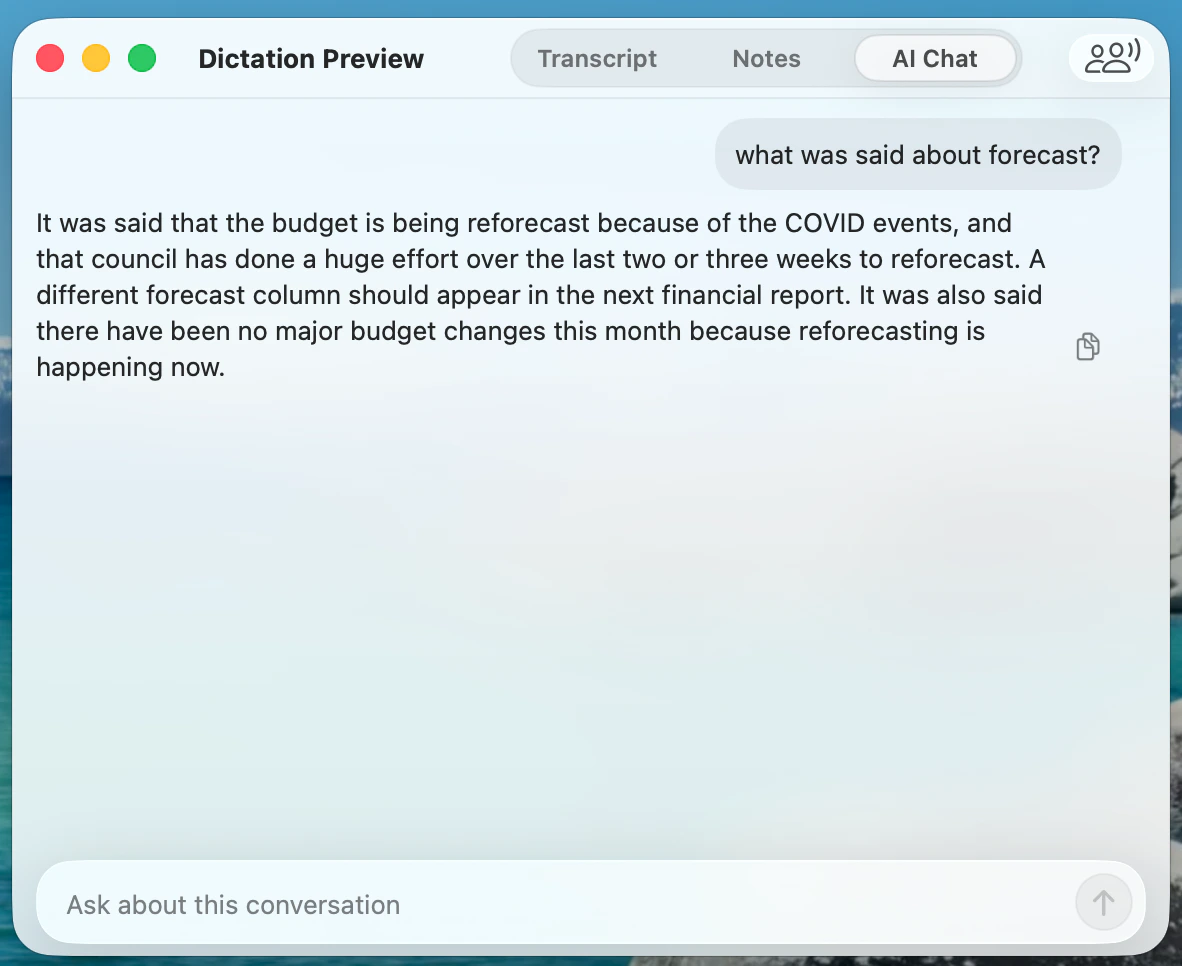
Open **AI Chat** to ask questions about the transcript while the meeting is still happening. For example, ask what was said about a topic, decision, owner, or next step.
## Ask AI Chat About the Meeting
Open **AI Chat** to ask questions about the transcript while the meeting is still happening. For example, ask what was said about a topic, decision, owner, or next step.
 ## Generate Meeting Notes
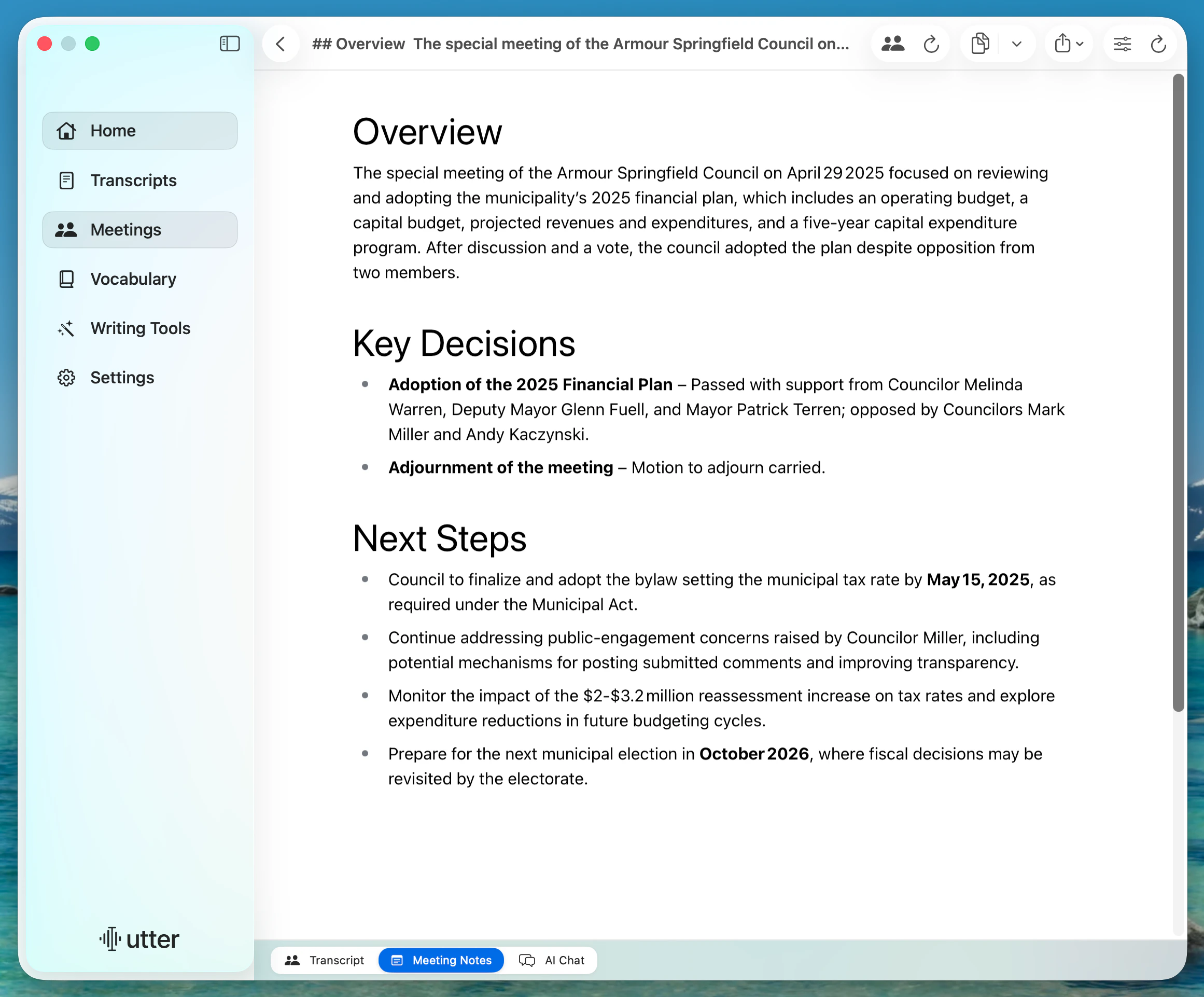
After the meeting, choose **Meeting Notes** to review a concise summary with decisions and next steps. Return to the speaker-labeled transcript when you need the exact wording.
## Generate Meeting Notes
After the meeting, choose **Meeting Notes** to review a concise summary with decisions and next steps. Return to the speaker-labeled transcript when you need the exact wording.
 ## Turn On Automatic Meeting Detection
Automatic meeting detection can show a prompt to start recording when Utter detects that you are in a meeting.
Go to **Meetings**, then open **Meeting Settings**.
Turn on **Automatic Meeting Detection**.
## Create a Meeting Note Template
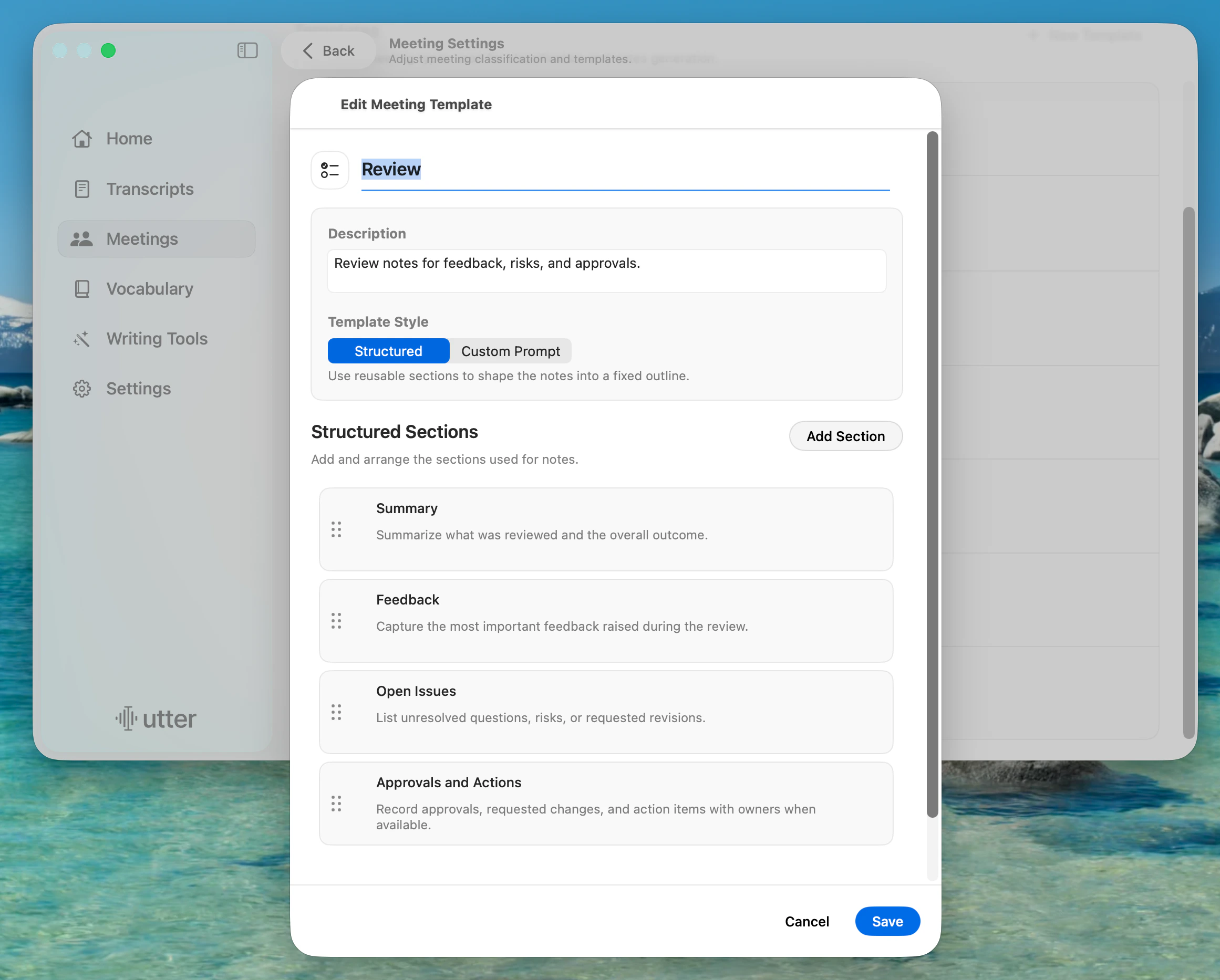
Templates control the structure Utter uses when it generates meeting notes.
Go to **Meetings**, then open **Meeting Settings**.
Click **New Template**.
Enter a template name and description.
Choose **Structured** for reusable sections, or **Custom Prompt** for your own instructions.
For a structured template, click **Add Section** and add the sections you want in the final notes.
Click **Save**.
## Turn On Automatic Meeting Detection
Automatic meeting detection can show a prompt to start recording when Utter detects that you are in a meeting.
Go to **Meetings**, then open **Meeting Settings**.
Turn on **Automatic Meeting Detection**.
## Create a Meeting Note Template
Templates control the structure Utter uses when it generates meeting notes.
Go to **Meetings**, then open **Meeting Settings**.
Click **New Template**.
Enter a template name and description.
Choose **Structured** for reusable sections, or **Custom Prompt** for your own instructions.
For a structured template, click **Add Section** and add the sections you want in the final notes.
Click **Save**.
 ## What To Expect
* The live transcript updates during the meeting.
* Speaker labels help separate who said what.
* Notes you type in **Notes** stay with the meeting.
* **AI Chat** answers from the meeting transcript.
* Meeting note templates shape the generated notes into your preferred structure.
## If That Did Not Work
1. Confirm your microphone works in Utter.
2. If speaker labels are missing, check that the meeting was recorded in **Meeting mode**.
3. If **AI Chat** cannot answer yet, wait until more transcript text appears.
4. If automatic detection does not appear, open **Meeting Settings** and confirm **Automatic Meeting Detection** is enabled.
## Related
Rename speakers and fix speaker segments after transcription.
Use AI prompts to format transcripts for different workflows.
Save transcripts and notes automatically as local files.
## Still Need Help?
If meeting recording still is not working, [contact support](https://utter.to/contact-us) and include what you tried, whether you started from **Meetings** or **Meeting mode**, and what happened after recording started.
## What To Expect
* The live transcript updates during the meeting.
* Speaker labels help separate who said what.
* Notes you type in **Notes** stay with the meeting.
* **AI Chat** answers from the meeting transcript.
* Meeting note templates shape the generated notes into your preferred structure.
## If That Did Not Work
1. Confirm your microphone works in Utter.
2. If speaker labels are missing, check that the meeting was recorded in **Meeting mode**.
3. If **AI Chat** cannot answer yet, wait until more transcript text appears.
4. If automatic detection does not appear, open **Meeting Settings** and confirm **Automatic Meeting Detection** is enabled.
## Related
Rename speakers and fix speaker segments after transcription.
Use AI prompts to format transcripts for different workflows.
Save transcripts and notes automatically as local files.
## Still Need Help?
If meeting recording still is not working, [contact support](https://utter.to/contact-us) and include what you tried, whether you started from **Meetings** or **Meeting mode**, and what happened after recording started.