> ## Documentation Index
> Fetch the complete documentation index at: https://utter.to/docs/llms.txt
> Use this file to discover all available pages before exploring further.
# Note Editor
> Use a full in-app editor to format and clean up transcripts without leaving Utter.
Utter includes a full in-app editor, so you can write and format notes without opening another app.
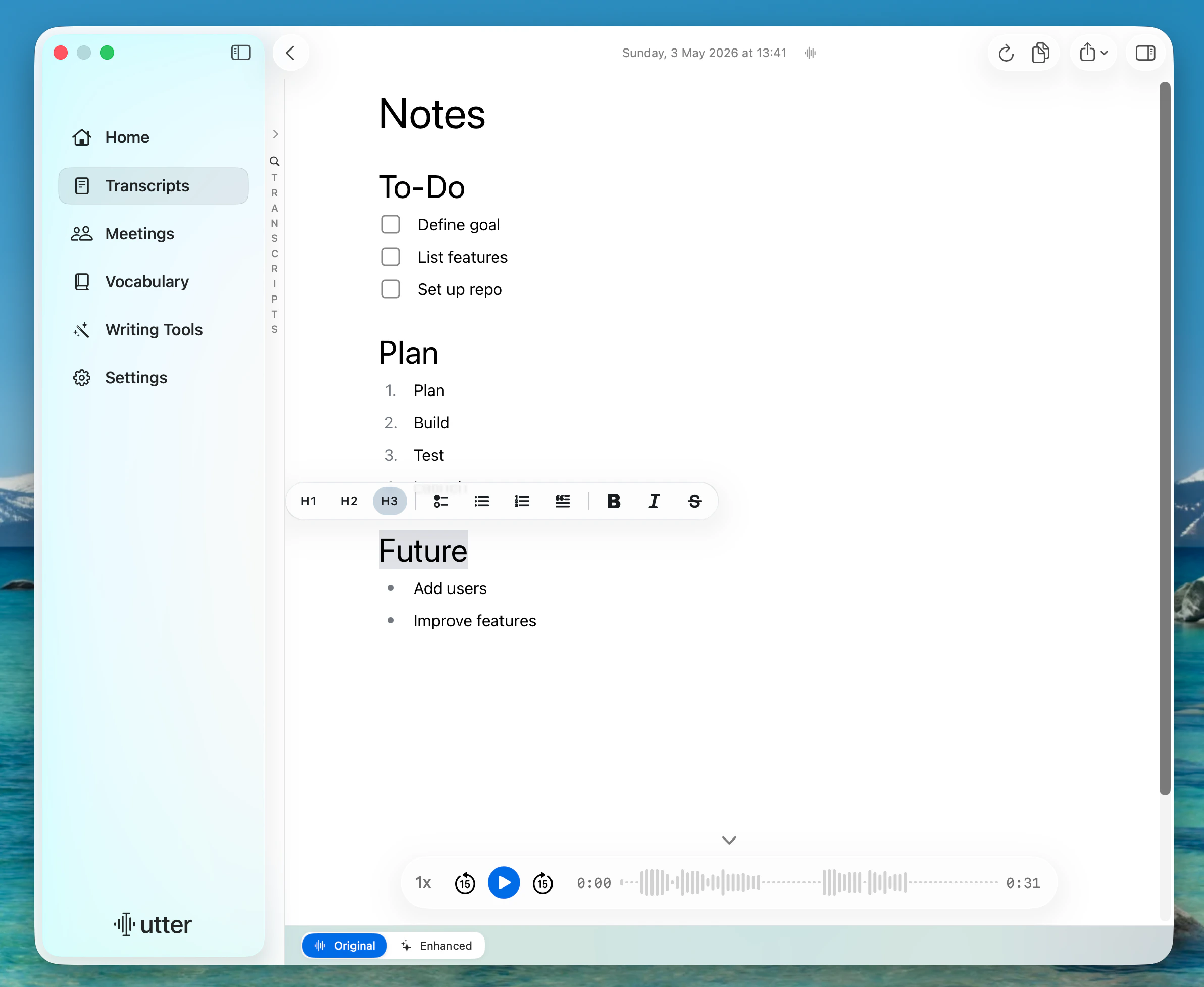 What you see while editing is what gets saved. You can use:
* Headings
* Bullet lists
* Numbered lists
* Checklists
* Quotes
You can do this for both the voice transcript and the AI-enhanced version.
## Edit Voice and AI Text In-App
Go to **Transcripts** from the sidebar.
Select the transcript you want to view or edit.
In the bottom picker, choose **Original** or **Enhanced**.
## What To Expect
* **Original** keeps your voice transcript.
* **Enhanced** keeps your AI-processed output.
* You can switch between them at any time while editing.
* Your formatting stays in place the way you wrote it.
## If Enhanced Is Missing
1. Click **Retranscribe**.
2. Pick a mode that uses AI processing.
3. Re-open **Enhanced** after retranscription completes.
What you see while editing is what gets saved. You can use:
* Headings
* Bullet lists
* Numbered lists
* Checklists
* Quotes
You can do this for both the voice transcript and the AI-enhanced version.
## Edit Voice and AI Text In-App
Go to **Transcripts** from the sidebar.
Select the transcript you want to view or edit.
In the bottom picker, choose **Original** or **Enhanced**.
## What To Expect
* **Original** keeps your voice transcript.
* **Enhanced** keeps your AI-processed output.
* You can switch between them at any time while editing.
* Your formatting stays in place the way you wrote it.
## If Enhanced Is Missing
1. Click **Retranscribe**.
2. Pick a mode that uses AI processing.
3. Re-open **Enhanced** after retranscription completes.