> ## Documentation Index
> Fetch the complete documentation index at: https://utter.to/docs/llms.txt
> Use this file to discover all available pages before exploring further.
# Edit Speaker Labels in Transcripts
> Turn on speaker labels, rename speakers, and fix speaker segments in transcripts.
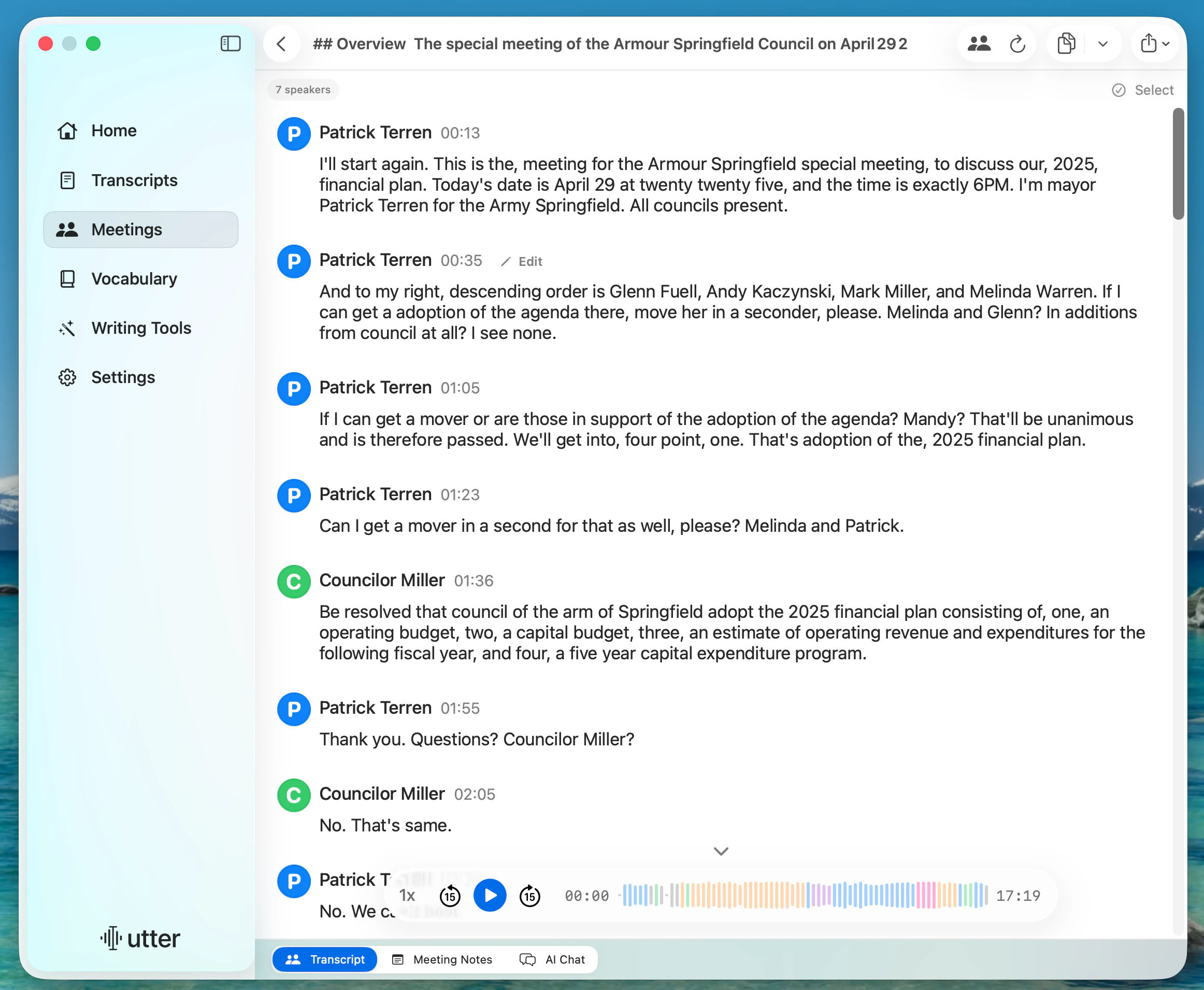
Use speaker labels to separate who said what, then fix names and segment assignment inside Utter.
 ## Turn On Speaker Labels In A Mode
Go to **Home**, then create a mode or edit an existing mode.
In the mode editor, open **Other Settings**.
Turn on **Speaker labels**.
Use that mode to record or transcribe.
If **Speaker labels** is unavailable, switch to a voice model that supports speaker separation.
## Rename Speakers
Go to **Transcripts** and open a transcript with speaker data.
Click **Edit Speakers** in the toolbar.
Replace default names (like `speaker_1`) with real names.
Click **Save Changes**.
## Reassign and Merge Speaker Segments
In the bottom display picker, choose **Speakers**.
Click **Select**.
Select one or more speaker segments.
Use **Reassign Speaker** to move selected segments to an existing or new speaker.
Use **Merge Sections** for adjacent segments that should be one block.
## What To Expect
* Changes save in-app and update the transcript immediately.
* Speaker names and segment edits stay attached to that transcript.
* You can switch between **Original**, **Speakers**, and **Enhanced** views from the bottom picker.
## If Edits Are Disabled
1. Confirm this transcript was created with **Speaker labels** enabled.
2. Confirm the transcript has speaker segments (not just a single text block).
## Related
Record meetings with speaker labels, notes, and AI chat.
Format and clean up transcript text in Utter.
## Turn On Speaker Labels In A Mode
Go to **Home**, then create a mode or edit an existing mode.
In the mode editor, open **Other Settings**.
Turn on **Speaker labels**.
Use that mode to record or transcribe.
If **Speaker labels** is unavailable, switch to a voice model that supports speaker separation.
## Rename Speakers
Go to **Transcripts** and open a transcript with speaker data.
Click **Edit Speakers** in the toolbar.
Replace default names (like `speaker_1`) with real names.
Click **Save Changes**.
## Reassign and Merge Speaker Segments
In the bottom display picker, choose **Speakers**.
Click **Select**.
Select one or more speaker segments.
Use **Reassign Speaker** to move selected segments to an existing or new speaker.
Use **Merge Sections** for adjacent segments that should be one block.
## What To Expect
* Changes save in-app and update the transcript immediately.
* Speaker names and segment edits stay attached to that transcript.
* You can switch between **Original**, **Speakers**, and **Enhanced** views from the bottom picker.
## If Edits Are Disabled
1. Confirm this transcript was created with **Speaker labels** enabled.
2. Confirm the transcript has speaker segments (not just a single text block).
## Related
Record meetings with speaker labels, notes, and AI chat.
Format and clean up transcript text in Utter.