> ## Documentation Index
> Fetch the complete documentation index at: https://utter.to/docs/llms.txt
> Use this file to discover all available pages before exploring further.
# Use Utter for Free
> Set up Utter with your own API keys or local models
Use Utter with 100% free, unlimited usage by bringing your own keys or using local models.
Choose the setup path that fits how you want to run transcription and AI processing:
1. **Bring your own keys:** add a Deepgram key for speech-to-text and an OpenRouter key for AI processing. This guide shows that setup.
2. **Use local models:** run transcription and AI processing locally. Start with [Use Utter Locally](/guides/use-utter-locally).
## Overview
Utter uses two types of AI services:
1. **Speech-to-Text:** Converts your voice to text.
2. **AI Processing:** Cleans up and formats your text.
This guide uses Deepgram for speech-to-text and OpenRouter for AI processing. If you prefer local models instead, use a Parakeet transcription model and Apple Intelligence, LM Studio, or Ollama.
Prefer local models? Follow [Use Utter Locally](/guides/use-utter-locally) for the local setup path.
## Step 1: Set Up Deepgram (Speech-to-Text)
Deepgram offers **\$200 in free credits** for new accounts - enough for years of typical usage.
Go to [console.deepgram.com](https://console.deepgram.com) and sign up for a free account. New accounts automatically receive \$200 in credits. No credit card required.
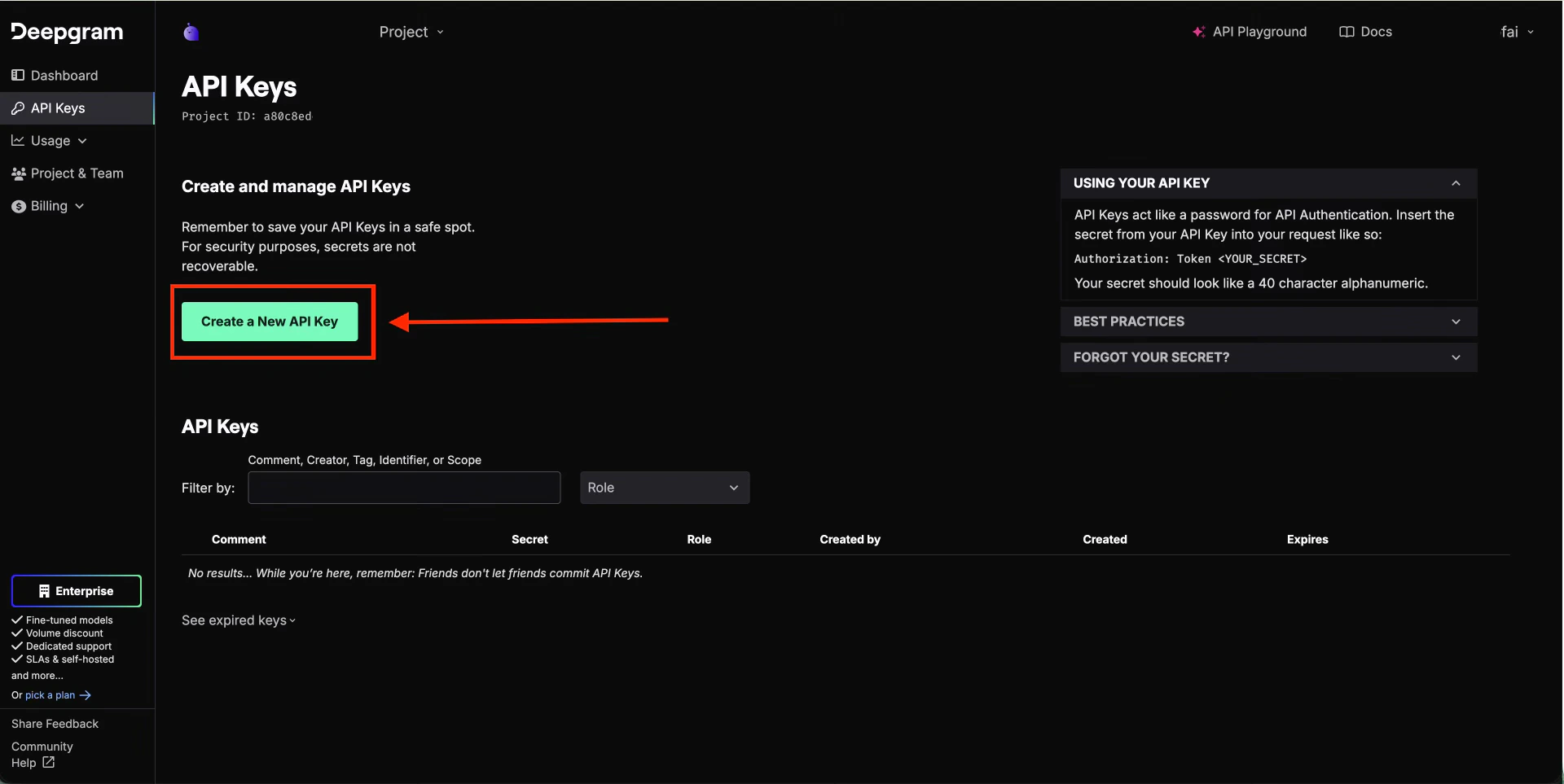
Go to **Settings > API Keys** and click **Create a New API Key**.
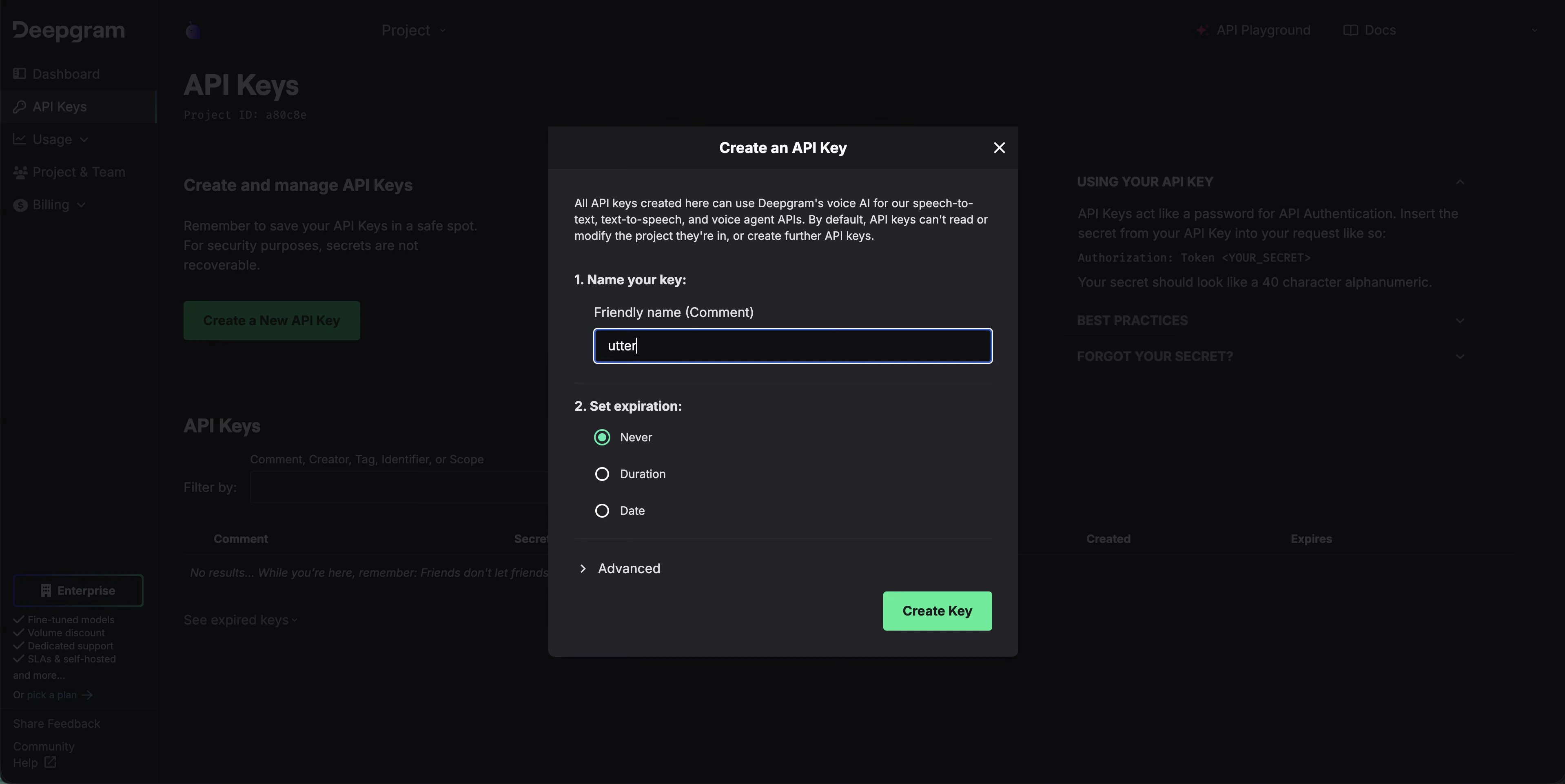
 Give it a name like "Utter".
 Copy the key immediately - you won't be able to see it again.
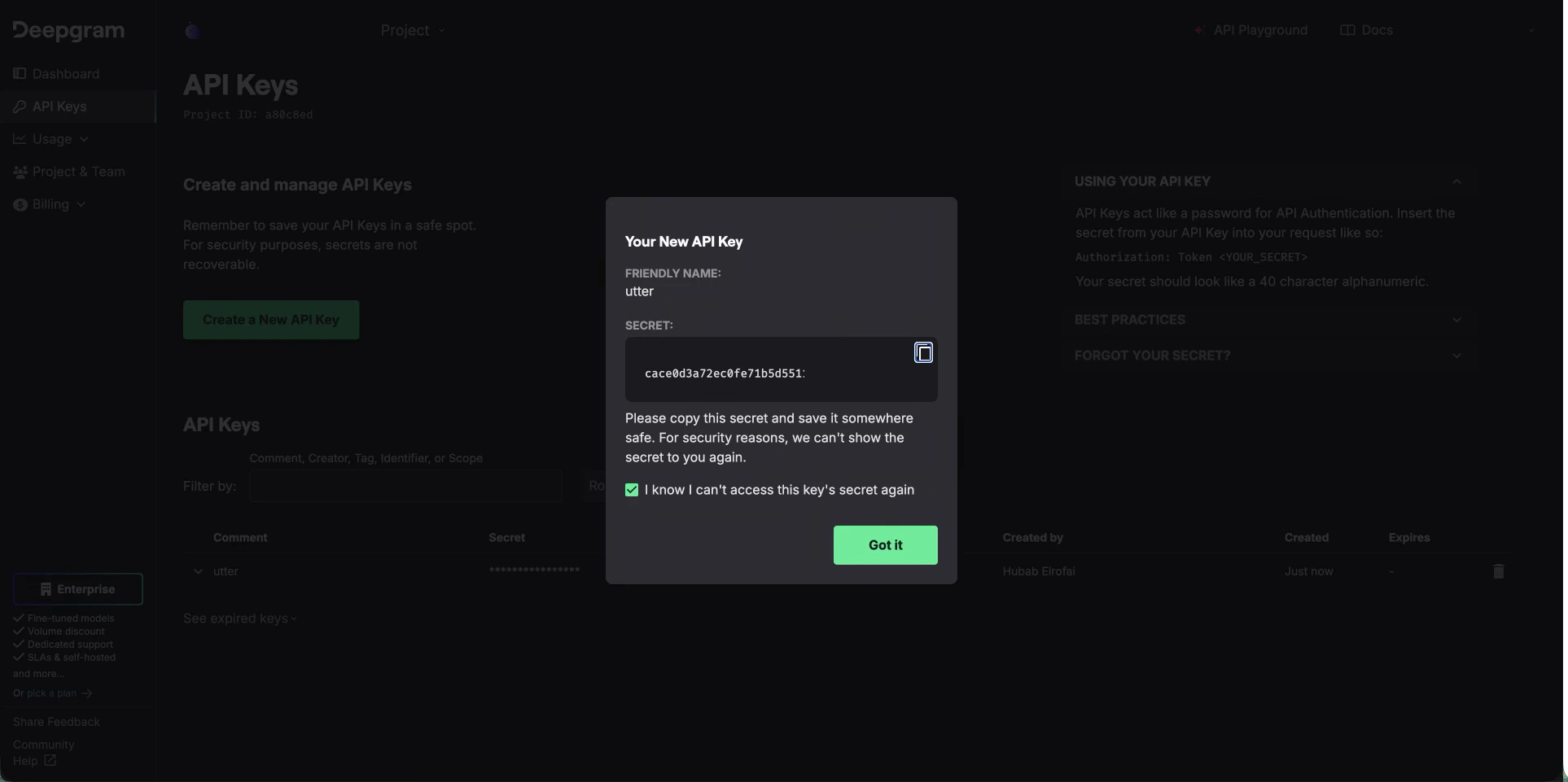 **What to expect:** You should have a Deepgram API key copied and ready to paste into Utter.
**How long will \$200 last?**
At Deepgram's rate of \~$0.0043/minute, $200 covers approximately **775 hours** of transcription. If you dictate 30 minutes per day, that's over **4 years** of free usage.
## Step 2: Set Up OpenRouter (AI Processing)
OpenRouter provides access to free AI models for text processing.
Go to [openrouter.ai](https://openrouter.ai) and sign up.
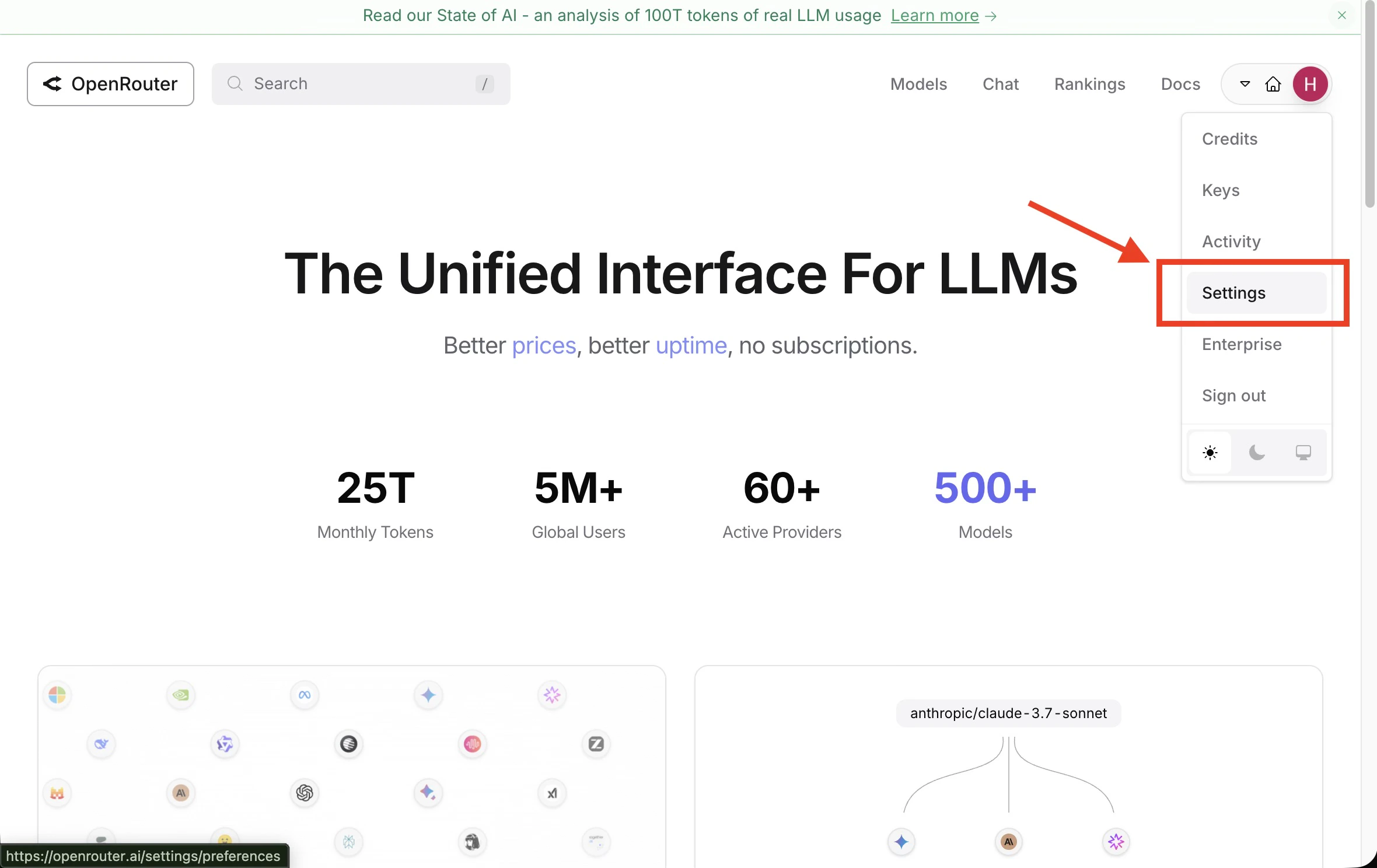
Click your profile menu and select **Settings**.
**What to expect:** You should have a Deepgram API key copied and ready to paste into Utter.
**How long will \$200 last?**
At Deepgram's rate of \~$0.0043/minute, $200 covers approximately **775 hours** of transcription. If you dictate 30 minutes per day, that's over **4 years** of free usage.
## Step 2: Set Up OpenRouter (AI Processing)
OpenRouter provides access to free AI models for text processing.
Go to [openrouter.ai](https://openrouter.ai) and sign up.
Click your profile menu and select **Settings**.
 Navigate to **Keys** and click **Create Key**.
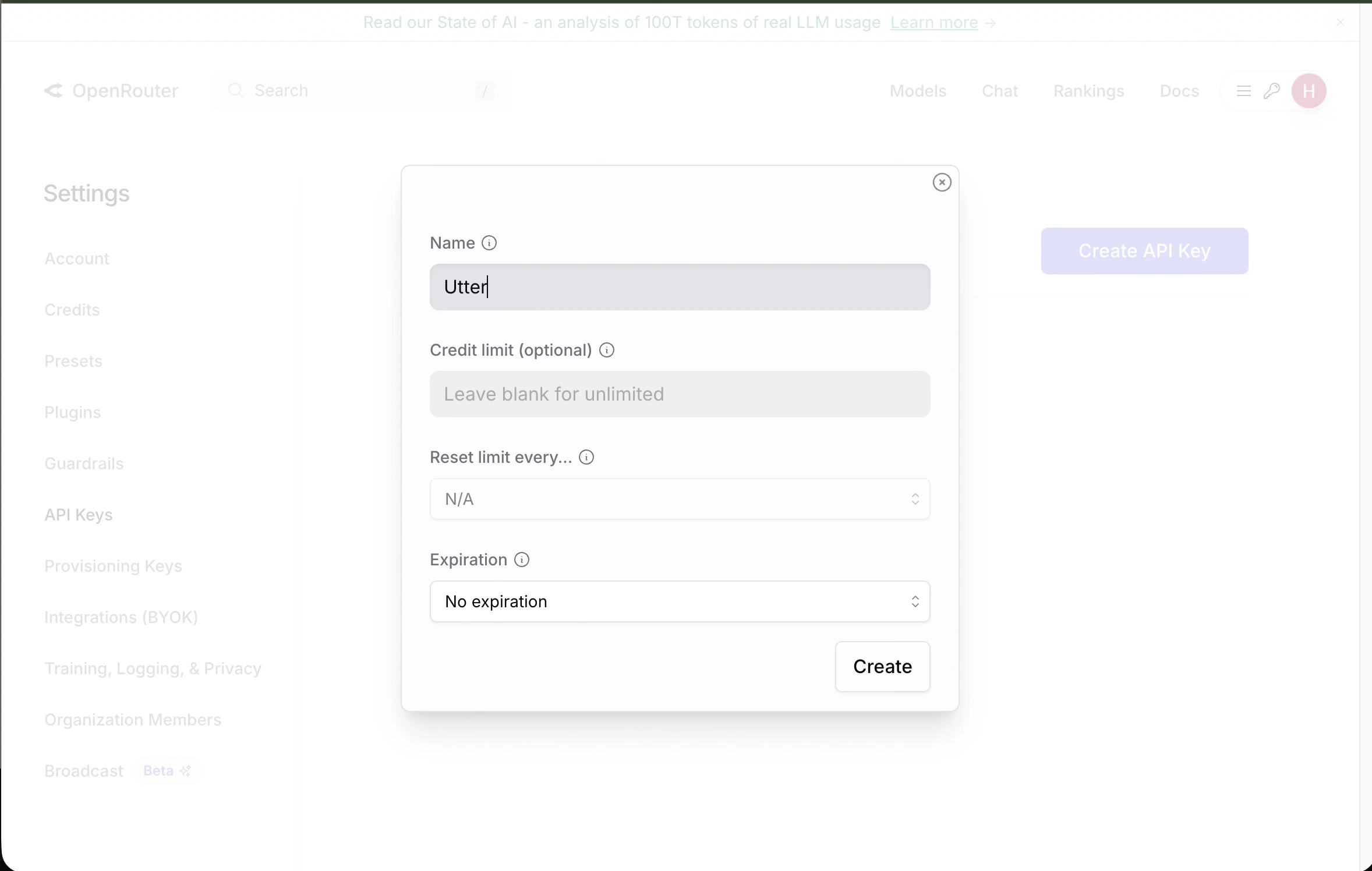
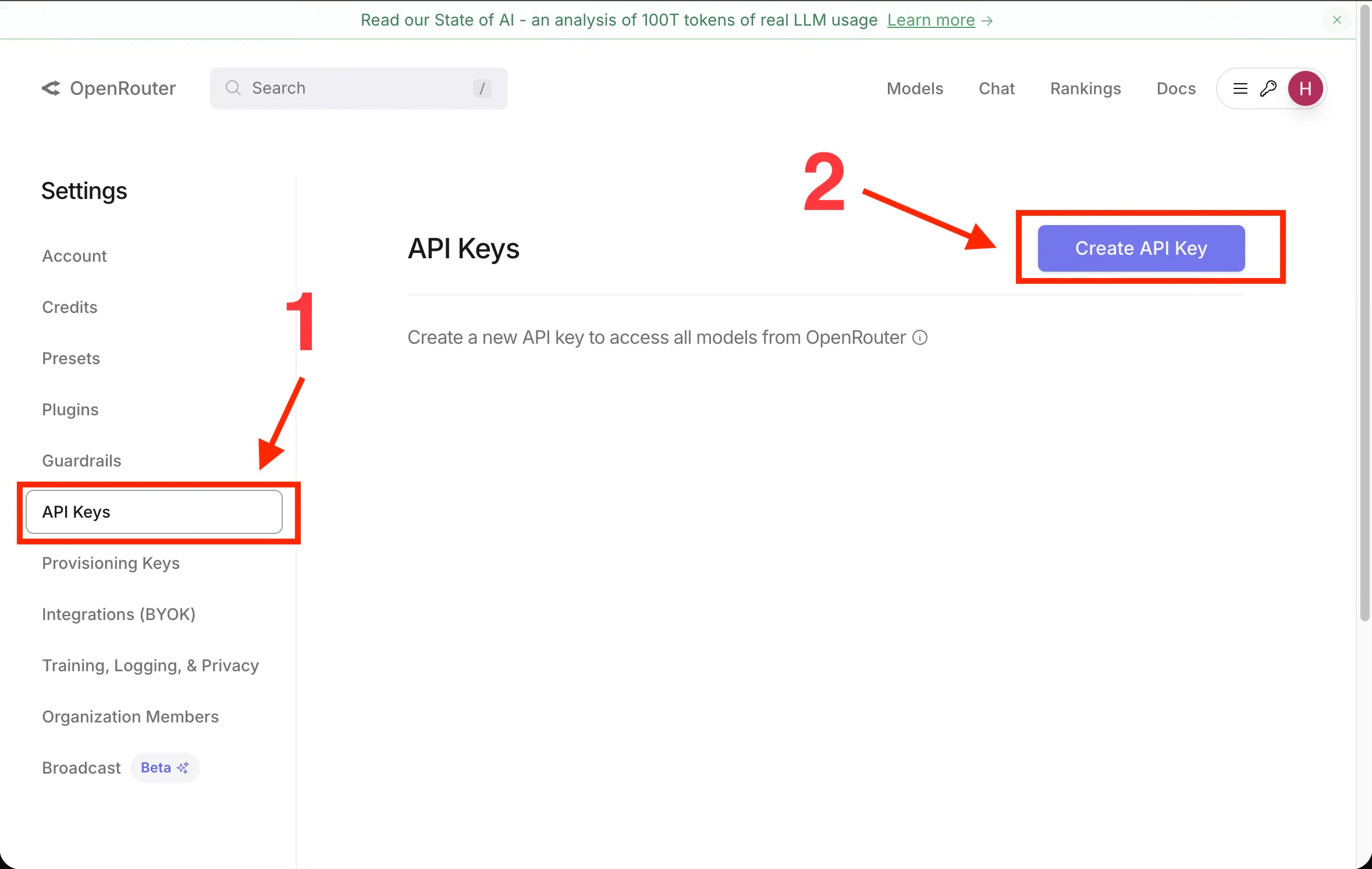 Give it a name like "Utter".
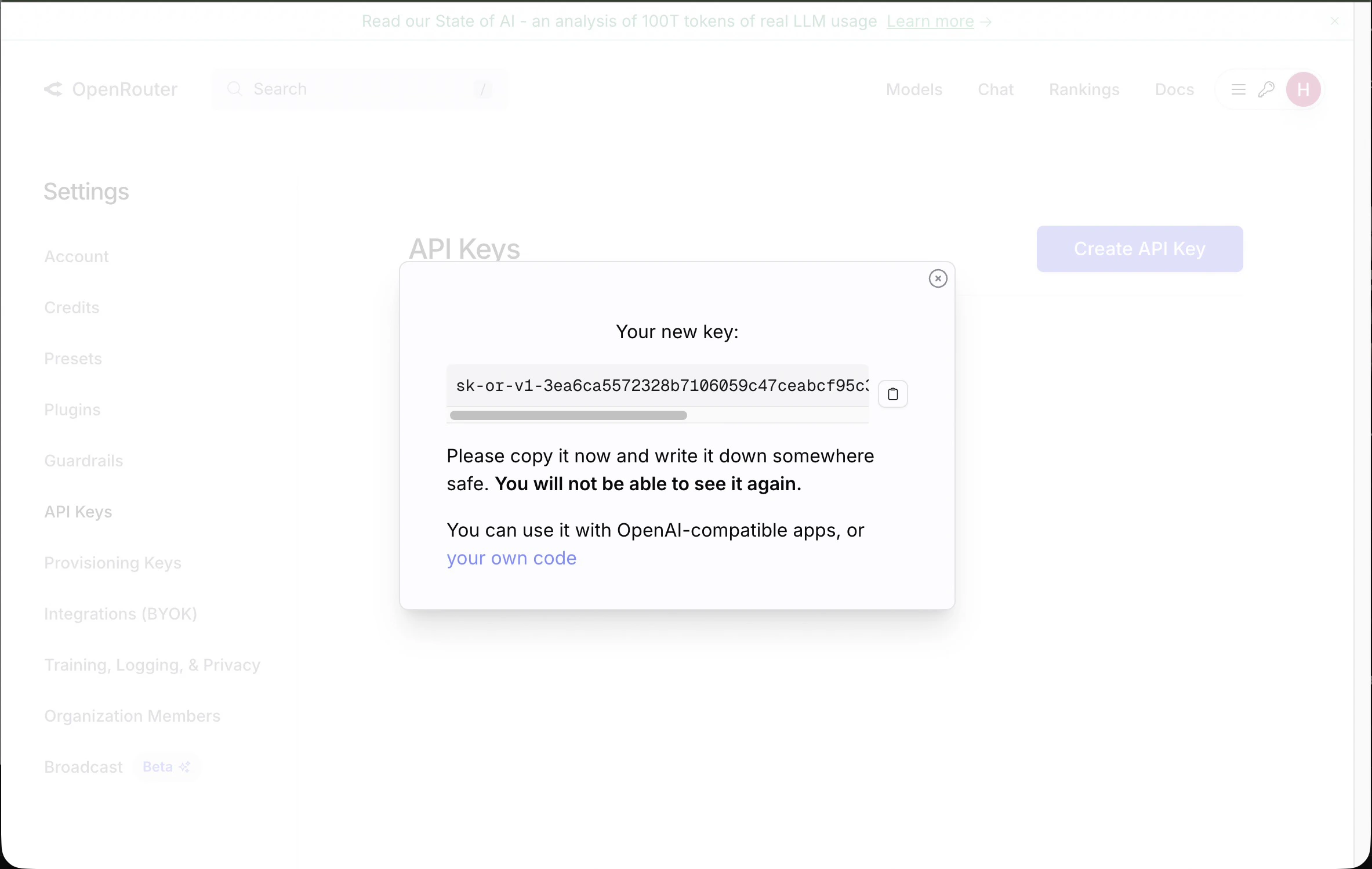
 Copy your API key.
 In **Privacy Settings**, enable free models.
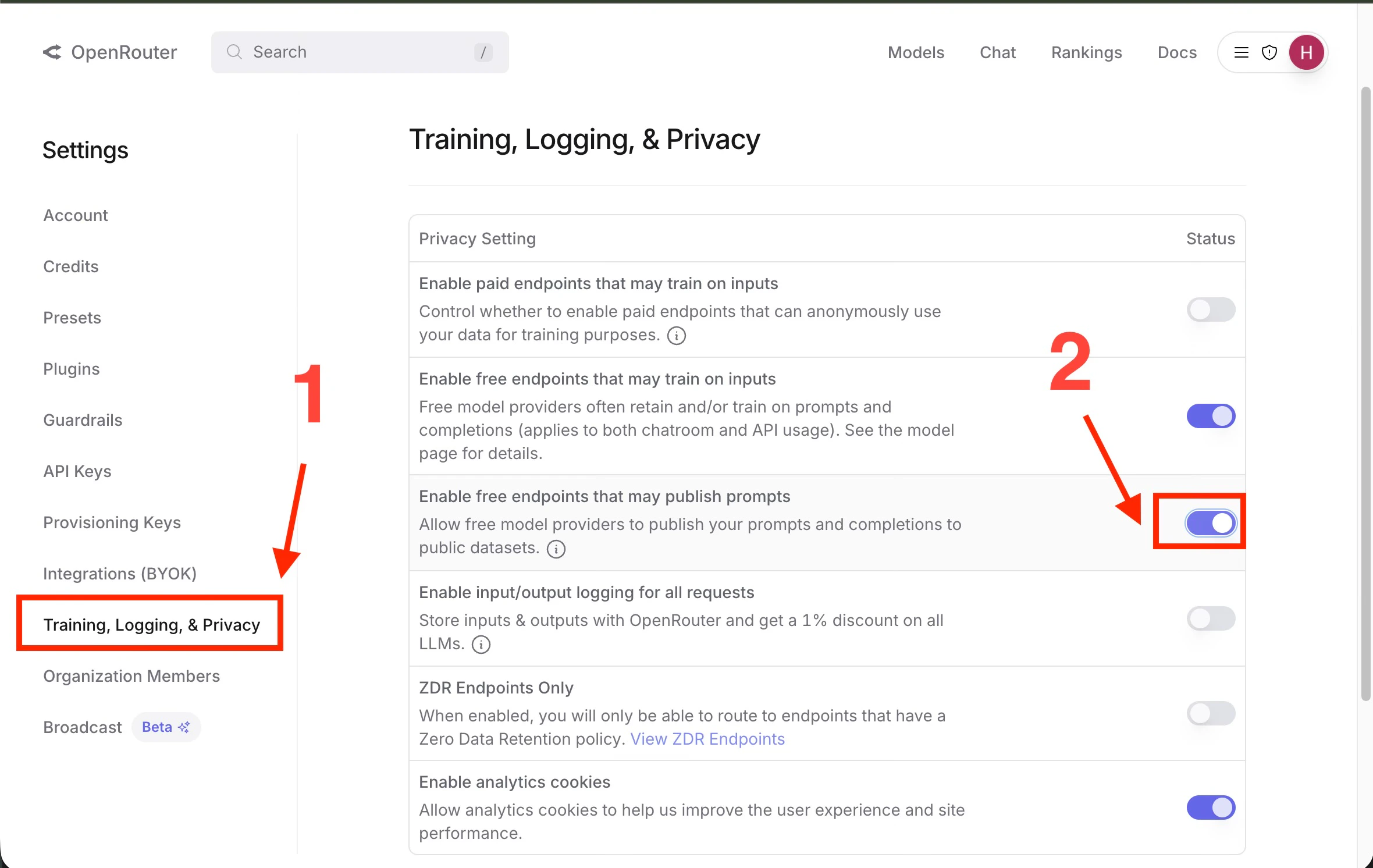 **What to expect:** You should have an OpenRouter API key copied, with free models enabled in your account settings.
Free models on OpenRouter are genuinely free with no hidden costs. They're supported by the community and AI providers.
## Step 3: Configure Utter
Once you have both API keys, add them to Utter:
Click the Utter menu bar icon > **Settings**
Go to **API Keys** and paste your Deepgram API key
Paste your OpenRouter API key
**What to expect:** Utter accepts both keys and lets you select a free AI model for processing.
**If that did not work:** Re-paste each key to remove hidden spaces, then run one short dictation test.
Then select a free AI model:
## Free Model Comparison
| Model | Speed | Quality | Best For |
| -------------- | --------- | ------- | ----------------- |
| Google Gemma 2 | Fast | Good | General use |
| Meta Llama 3 | Fast | Good | Technical content |
| Mistral 7B | Very Fast | Good | Quick dictation |
## Free Setup Options
| Option | What You Set Up | Utter Usage |
| ------------------- | ------------------------------------------------------ | ----------------------- |
| Bring your own keys | Deepgram plus OpenRouter | 100% free and unlimited |
| Local models | Parakeet plus Apple Intelligence, LM Studio, or Ollama | 100% free and unlimited |
## FAQ
Yes. Utter is 100% free and unlimited when you bring your own keys or use local models.
Use this guide if you want to bring your own keys. Use [Use Utter Locally](/guides/use-utter-locally) if you want to run local models.
Free local and hosted models work well for many AI text-processing tasks. Paid models may be faster, larger, or more accurate for complex formatting and long documents.
Your audio goes directly to the providers you choose (Deepgram, OpenRouter). Utter doesn't store or process your data when using BYOK.
## Alternative: Just Use Deepgram
If you only need basic transcription without AI formatting:
1. Set up Deepgram (as above)
2. Don't set up an AI provider
3. Enjoy unlimited free transcription
This gives you raw transcription without AI post-processing - perfect for verbatim notes.
## Related
Set up 100% free, unlimited usage with local models.
Connect your own model providers and API keys.
**What to expect:** You should have an OpenRouter API key copied, with free models enabled in your account settings.
Free models on OpenRouter are genuinely free with no hidden costs. They're supported by the community and AI providers.
## Step 3: Configure Utter
Once you have both API keys, add them to Utter:
Click the Utter menu bar icon > **Settings**
Go to **API Keys** and paste your Deepgram API key
Paste your OpenRouter API key
**What to expect:** Utter accepts both keys and lets you select a free AI model for processing.
**If that did not work:** Re-paste each key to remove hidden spaces, then run one short dictation test.
Then select a free AI model:
## Free Model Comparison
| Model | Speed | Quality | Best For |
| -------------- | --------- | ------- | ----------------- |
| Google Gemma 2 | Fast | Good | General use |
| Meta Llama 3 | Fast | Good | Technical content |
| Mistral 7B | Very Fast | Good | Quick dictation |
## Free Setup Options
| Option | What You Set Up | Utter Usage |
| ------------------- | ------------------------------------------------------ | ----------------------- |
| Bring your own keys | Deepgram plus OpenRouter | 100% free and unlimited |
| Local models | Parakeet plus Apple Intelligence, LM Studio, or Ollama | 100% free and unlimited |
## FAQ
Yes. Utter is 100% free and unlimited when you bring your own keys or use local models.
Use this guide if you want to bring your own keys. Use [Use Utter Locally](/guides/use-utter-locally) if you want to run local models.
Free local and hosted models work well for many AI text-processing tasks. Paid models may be faster, larger, or more accurate for complex formatting and long documents.
Your audio goes directly to the providers you choose (Deepgram, OpenRouter). Utter doesn't store or process your data when using BYOK.
## Alternative: Just Use Deepgram
If you only need basic transcription without AI formatting:
1. Set up Deepgram (as above)
2. Don't set up an AI provider
3. Enjoy unlimited free transcription
This gives you raw transcription without AI post-processing - perfect for verbatim notes.
## Related
Set up 100% free, unlimited usage with local models.
Connect your own model providers and API keys.