

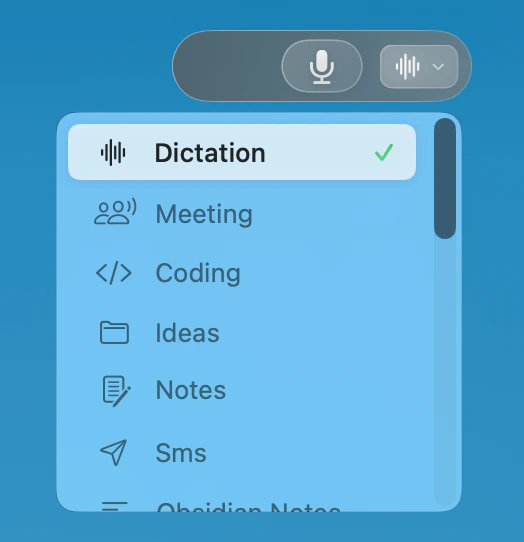
Built-in Modes
Utter includes built-in modes for common tasks:Formats your dictation as a professional email with subject line, greeting, body, and signature
Note
Creates clean, organized notes with bullet points and headers
Summary
Condenses your speech into key points and takeaways
Message
Formats as a casual message suitable for chat apps
Use a Mode
Quick Selection
1
Start Recording
Press your global shortcut.
2
Speak Normally
Dictate your content.
3
Choose a Mode
Before releasing, click a mode in the recording window, or use its shortcut.
Keyboard Shortcuts
Assign keyboard shortcuts to your favorite modes for faster access:1
Open Modes Settings
Go to Settings > Modes.
2
Select a Shortcut Field
Click the shortcut field next to a mode.
3
Assign Shortcut
Press your desired key combination.
Example: Email Mode
- What You Say
- Output
Custom Modes
Create your own modes for specialized use cases.Create a Custom Mode
1
Open Utter
Click Utter in the menu bar to open the main window
2
Create New Mode
Click the + button next to Modes.
3
Configure
Enter a name, description, and mode instructions.
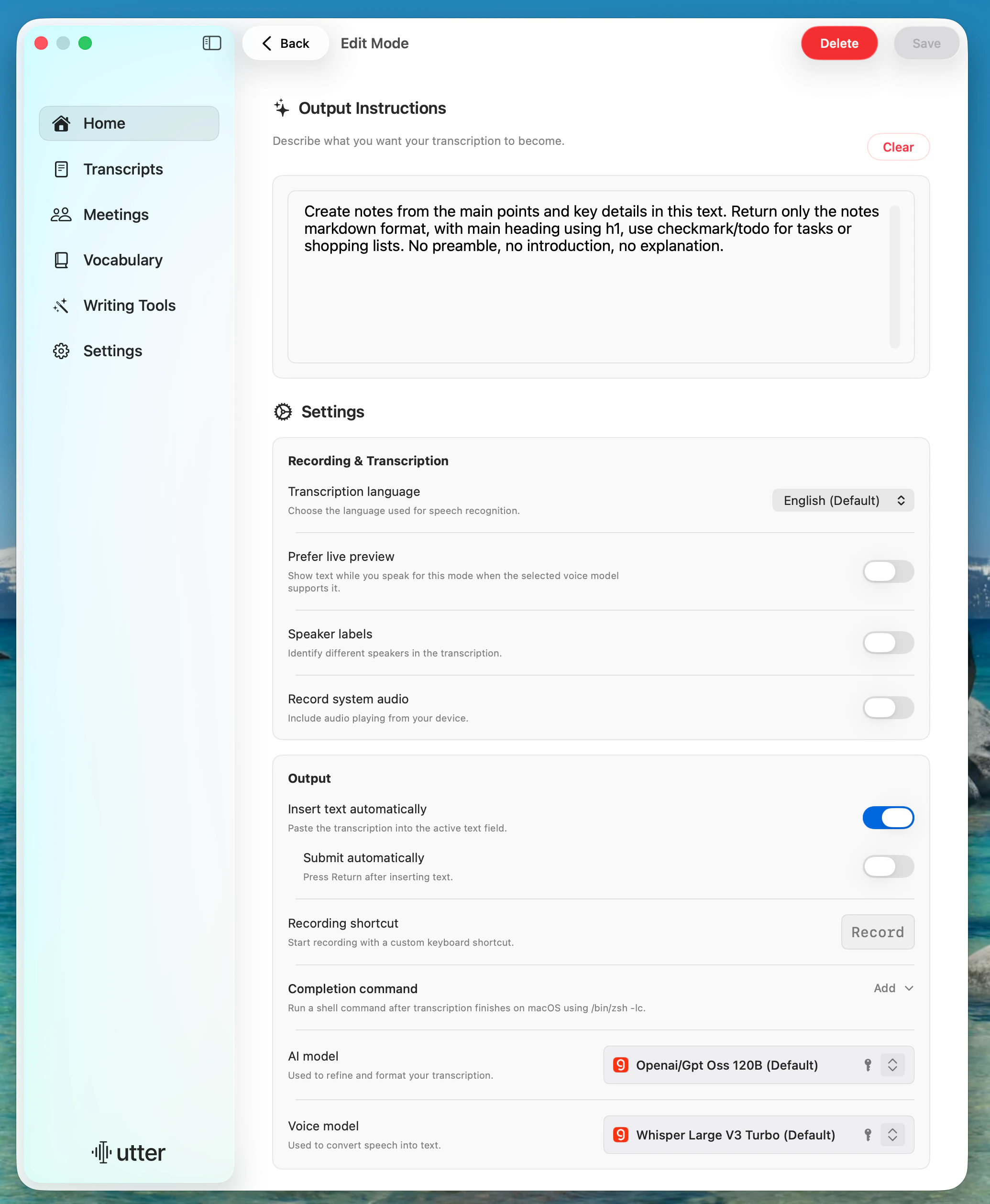
Write Better Mode Instructions
Good mode instructions are:Example Custom Mode Instructions
Tweet Thread
Tweet Thread
Meeting Notes
Meeting Notes
Slack Message
Slack Message
Mode Shortcuts
Set a custom keyboard shortcut for any mode to start dictating immediately with that specific mode active.1
Open Utter
Click Utter in the menu bar to open the main window
2
Edit a Mode
Click on a mode to edit it
3
Assign a Shortcut
Click the shortcut field and press your desired key combination
Tips
Mode output is AI-generated, so results can vary. If you need strict formatting, use explicit instructions.