

Start a Meeting Recording
1
Open Meetings
In Utter, go to Meetings.
2
Start Recording
Start a new meeting recording from the meeting page.
3
Use Meeting Mode
You can also start a recording with Meeting mode selected.
4
Keep Utter Open During the Meeting
Use the Transcript, Notes, and AI Chat tabs while the meeting is happening.
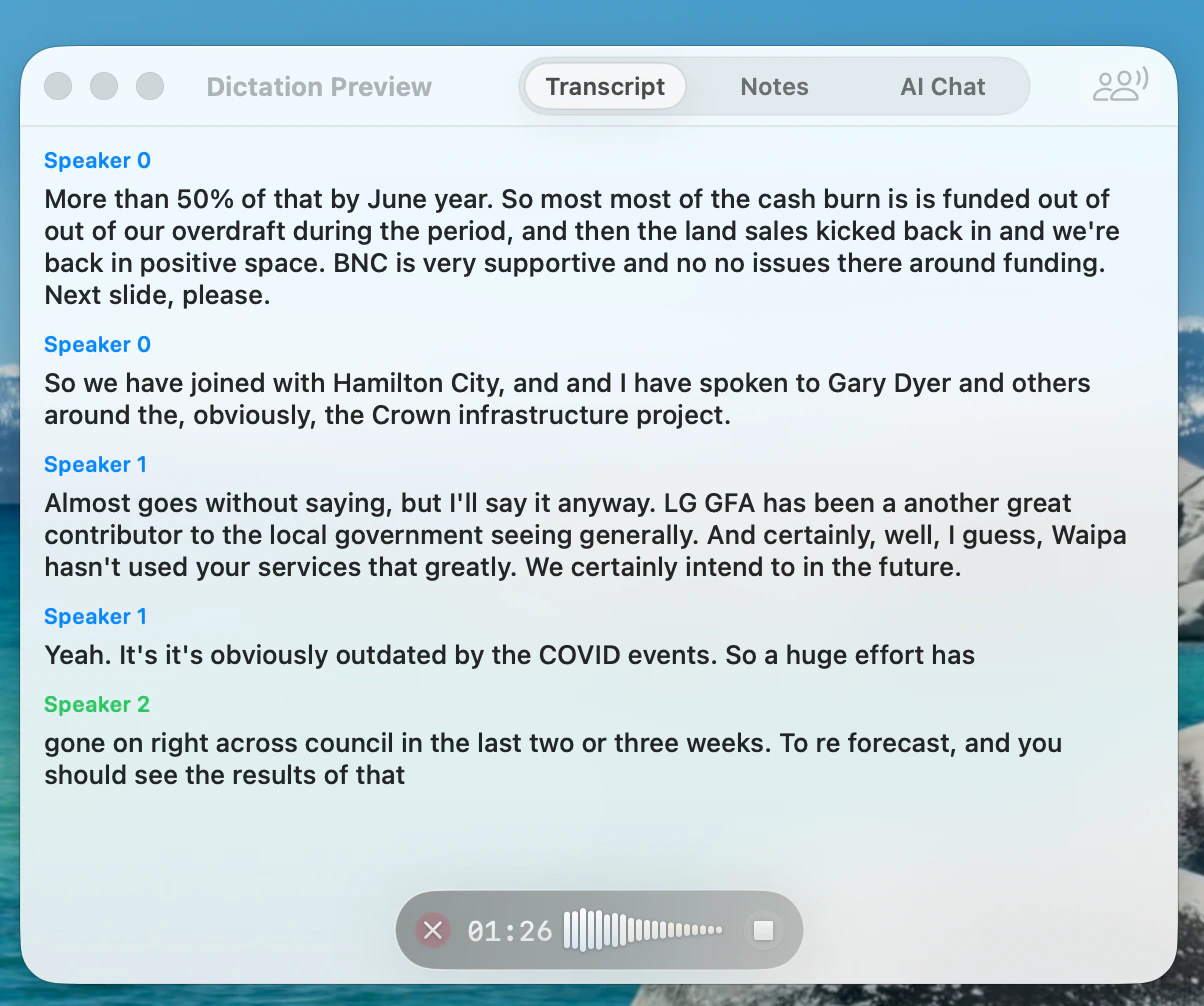
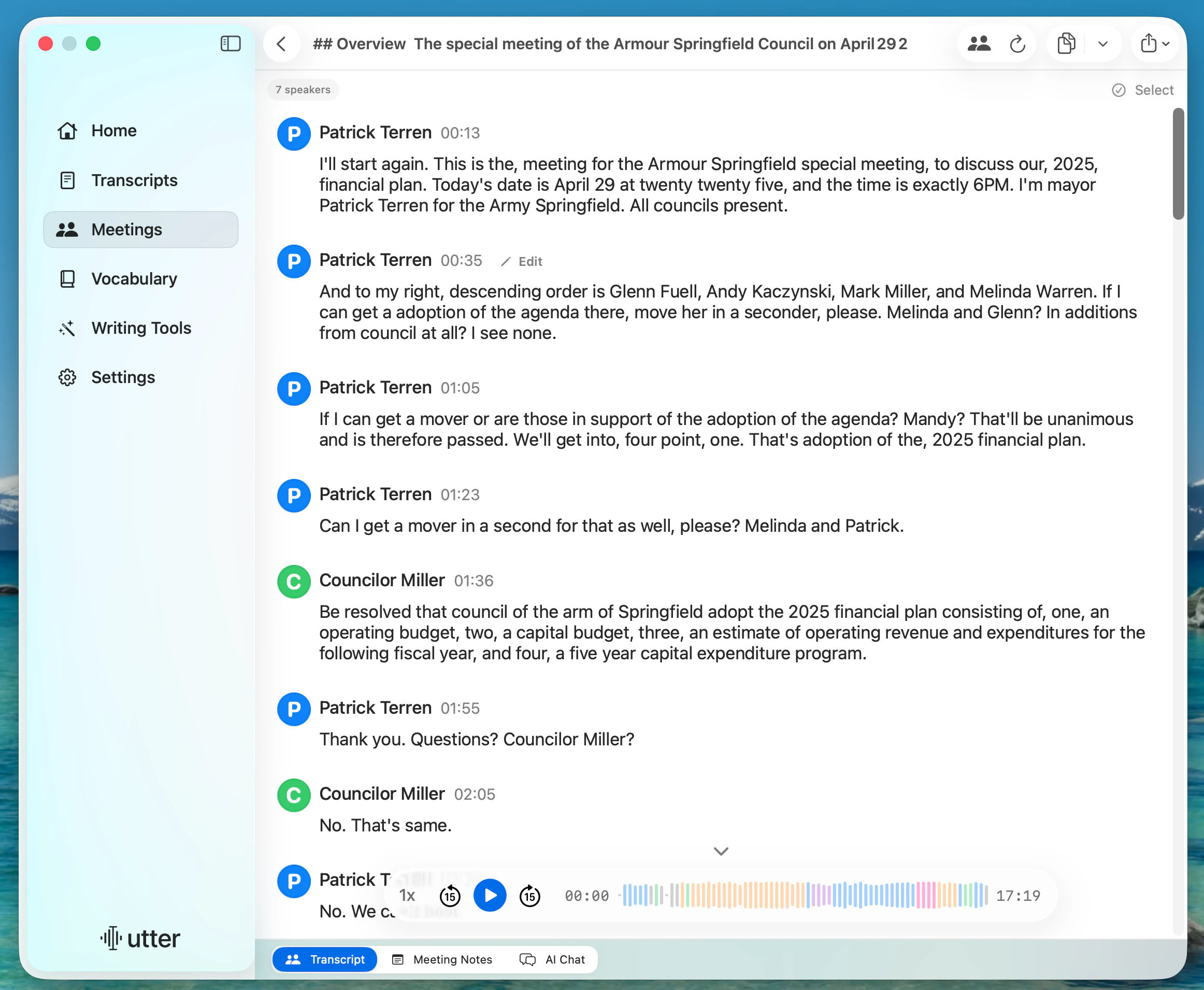
Follow the Live Speaker-Labeled Transcript
The Transcript tab shows what people are saying in real time. Speaker labels separate each person, so you can scan who said what during the meeting.Take Notes During the Meeting
Open Notes to keep a scratchpad beside the recording. Use it for decisions, follow-ups, action items, or anything you want to remember before the final notes are generated.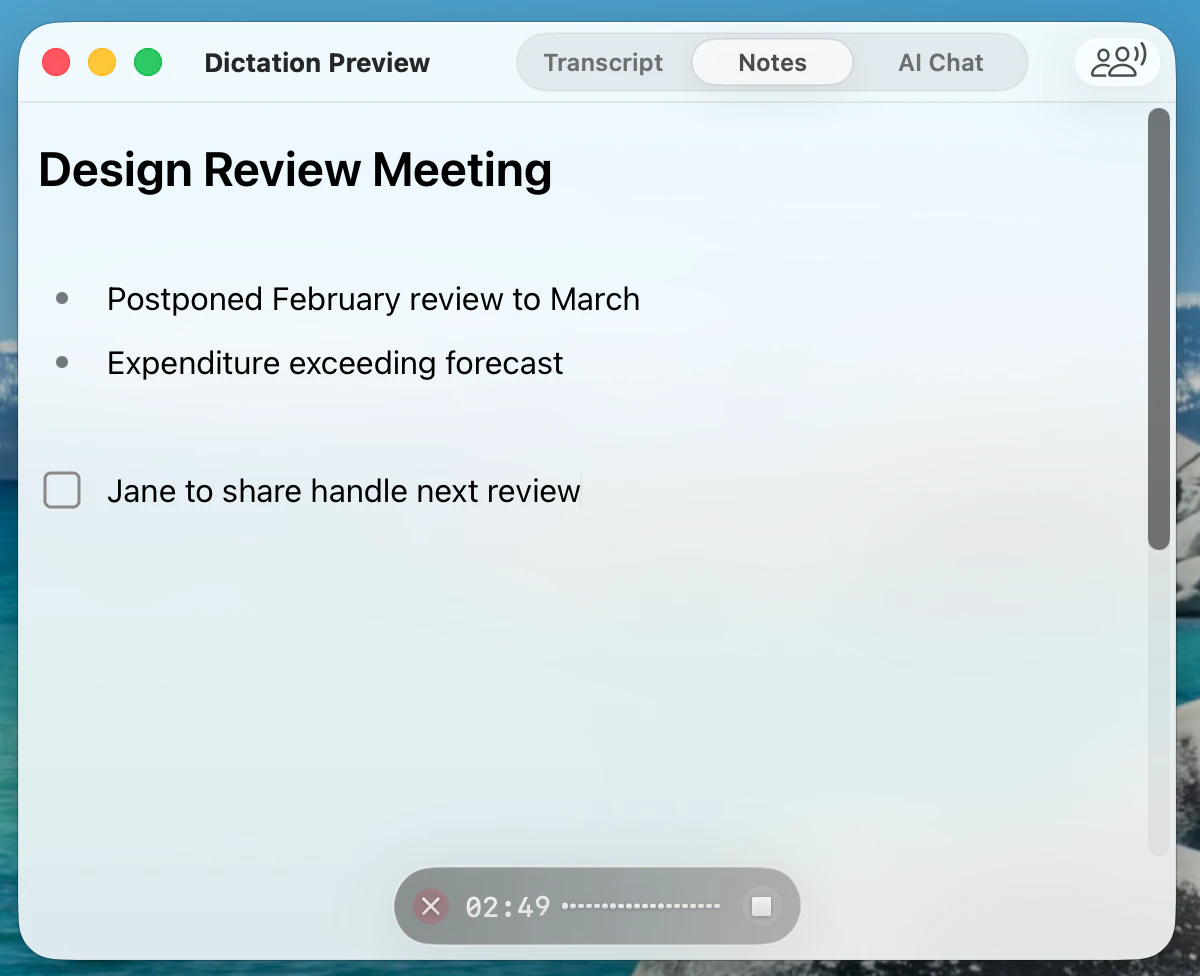
Ask AI Chat About the Meeting
Open AI Chat to ask questions about the transcript while the meeting is still happening. For example, ask what was said about a topic, decision, owner, or next step.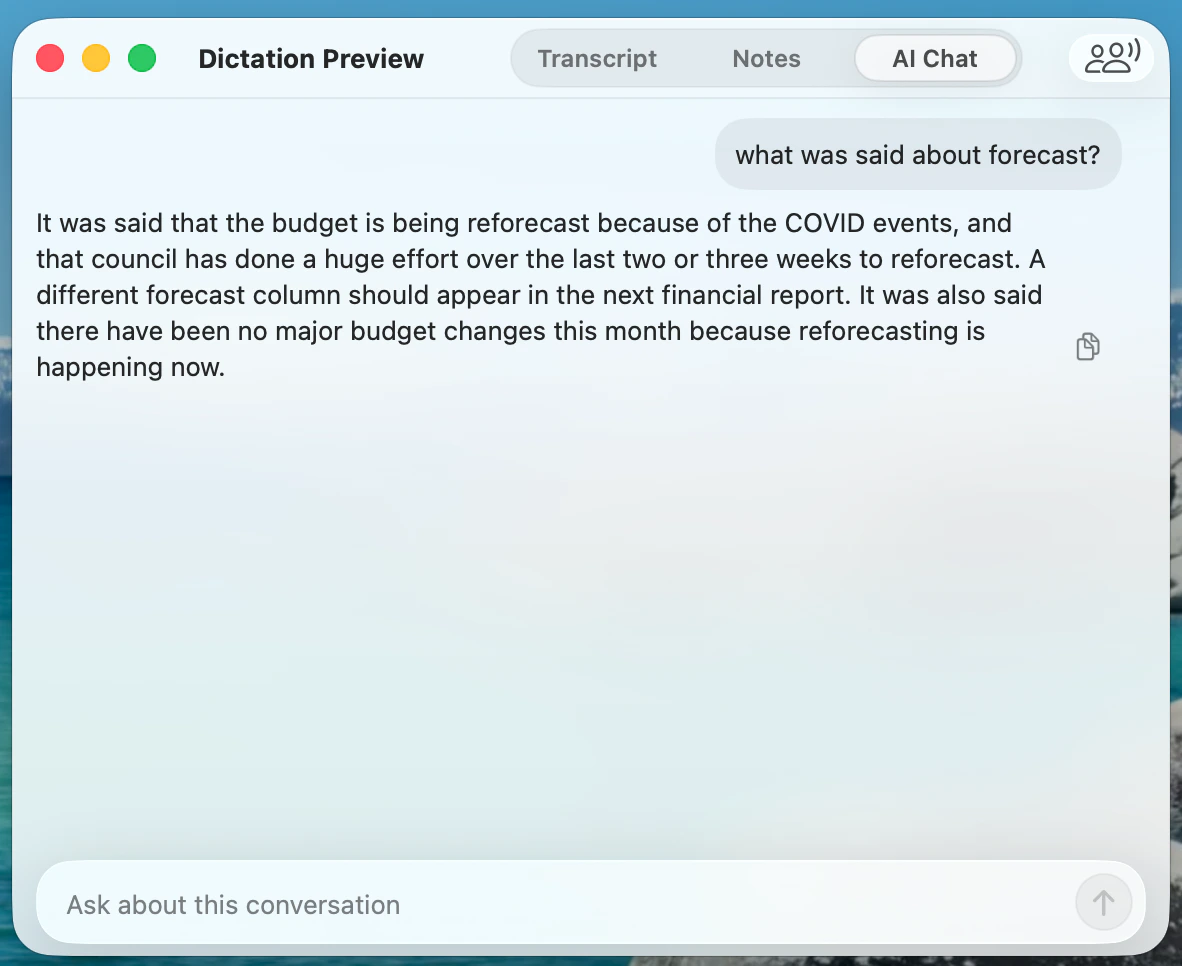
Generate Meeting Notes
After the meeting, choose Meeting Notes to review a concise summary with decisions and next steps. Return to the speaker-labeled transcript when you need the exact wording.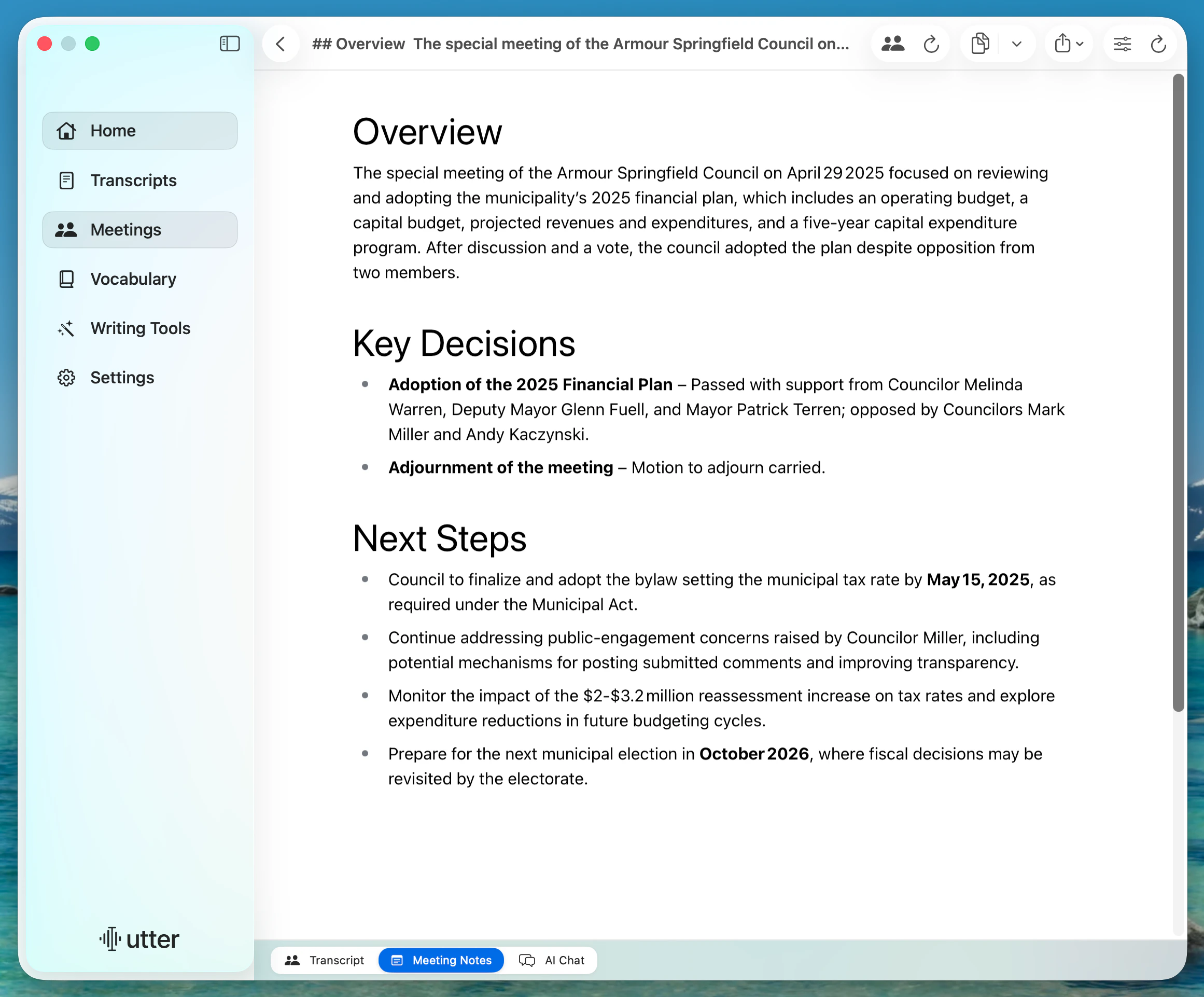
Turn On Automatic Meeting Detection
Automatic meeting detection can show a prompt to start recording when Utter detects that you are in a meeting.1
Open Meeting Settings
Go to Meetings, then open Meeting Settings.
2
Enable Detection
Turn on Automatic Meeting Detection.
Create a Meeting Note Template
Templates control the structure Utter uses when it generates meeting notes.1
Open Meeting Settings
Go to Meetings, then open Meeting Settings.
2
Create a Template
Click New Template.
3
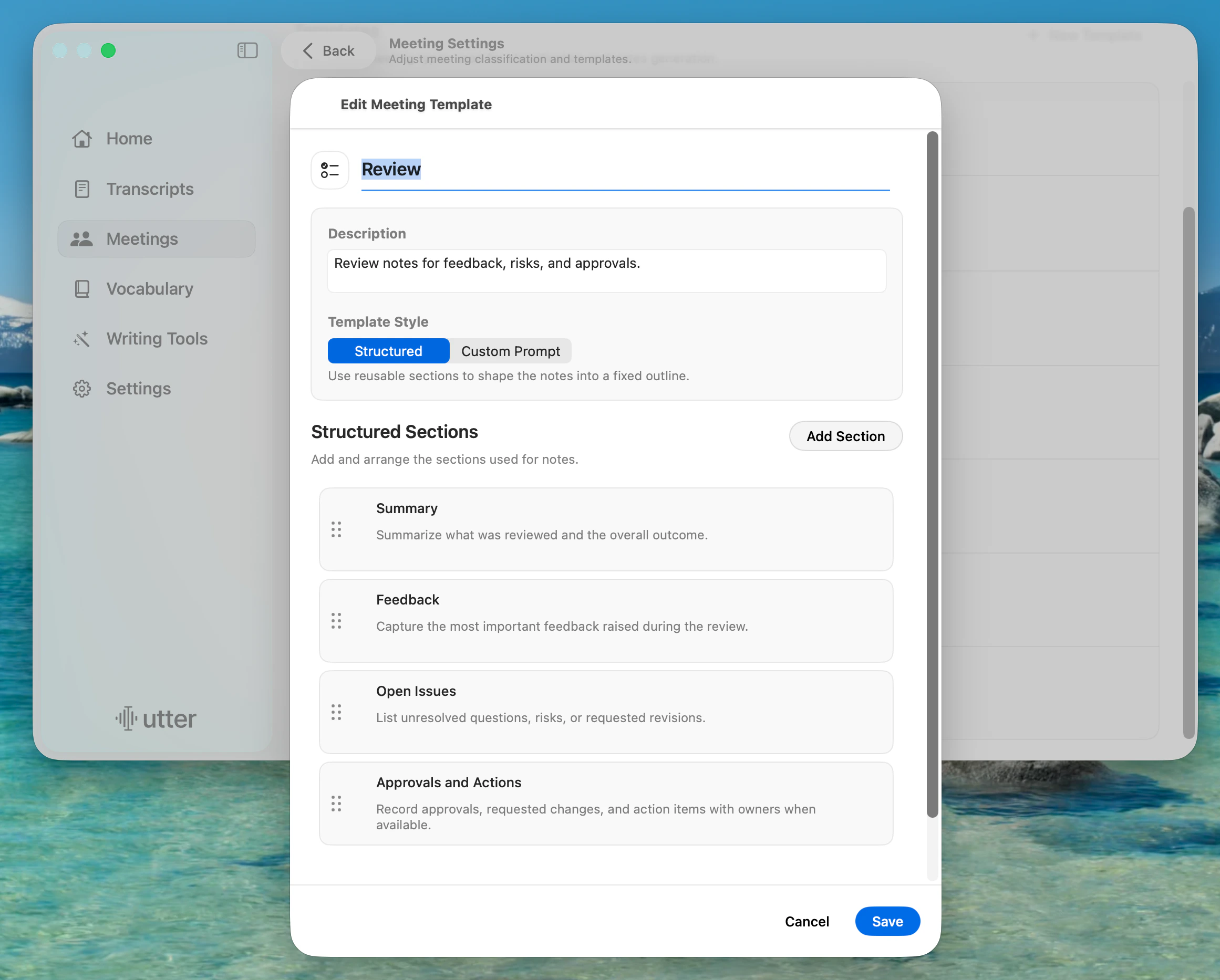
Name the Template
Enter a template name and description.
4
Choose a Template Style
Choose Structured for reusable sections, or Custom Prompt for your own instructions.
5
Add Sections
For a structured template, click Add Section and add the sections you want in the final notes.
6
Save the Template
Click Save.
What To Expect
- The live transcript updates during the meeting.
- Speaker labels help separate who said what.
- Notes you type in Notes stay with the meeting.
- AI Chat answers from the meeting transcript.
- Meeting note templates shape the generated notes into your preferred structure.
If That Did Not Work
- Confirm your microphone works in Utter.
- If speaker labels are missing, check that the meeting was recorded in Meeting mode.
- If AI Chat cannot answer yet, wait until more transcript text appears.
- If automatic detection does not appear, open Meeting Settings and confirm Automatic Meeting Detection is enabled.
Related
Edit Speaker Labels
Rename speakers and fix speaker segments after transcription.
Modes
Use AI prompts to format transcripts for different workflows.
Auto-Export Transcripts
Save transcripts and notes automatically as local files.