

Overview
Use Utter locally in two stages to avoid paid transcription or AI usage:- Local transcription: Choose an on-device speech model (Parakeet) for voice-to-text.
- Free AI processing: Choose Apple Intelligence as your default AI model.
Stage 1: Set Up Offline Transcription
On Mac, select an available local transcription model, such as Parakeet, in the default model settings. Check the mode you actually use as well: a mode-specific model can differ from the default.Mac
1
Open Advanced
In Utter, go to Settings > Advanced.
2
Change the Default Transcription Model
At the top of Default Models, select a Parakeet model for Transcription. Built-in models are marked with a MacBook icon in the model list.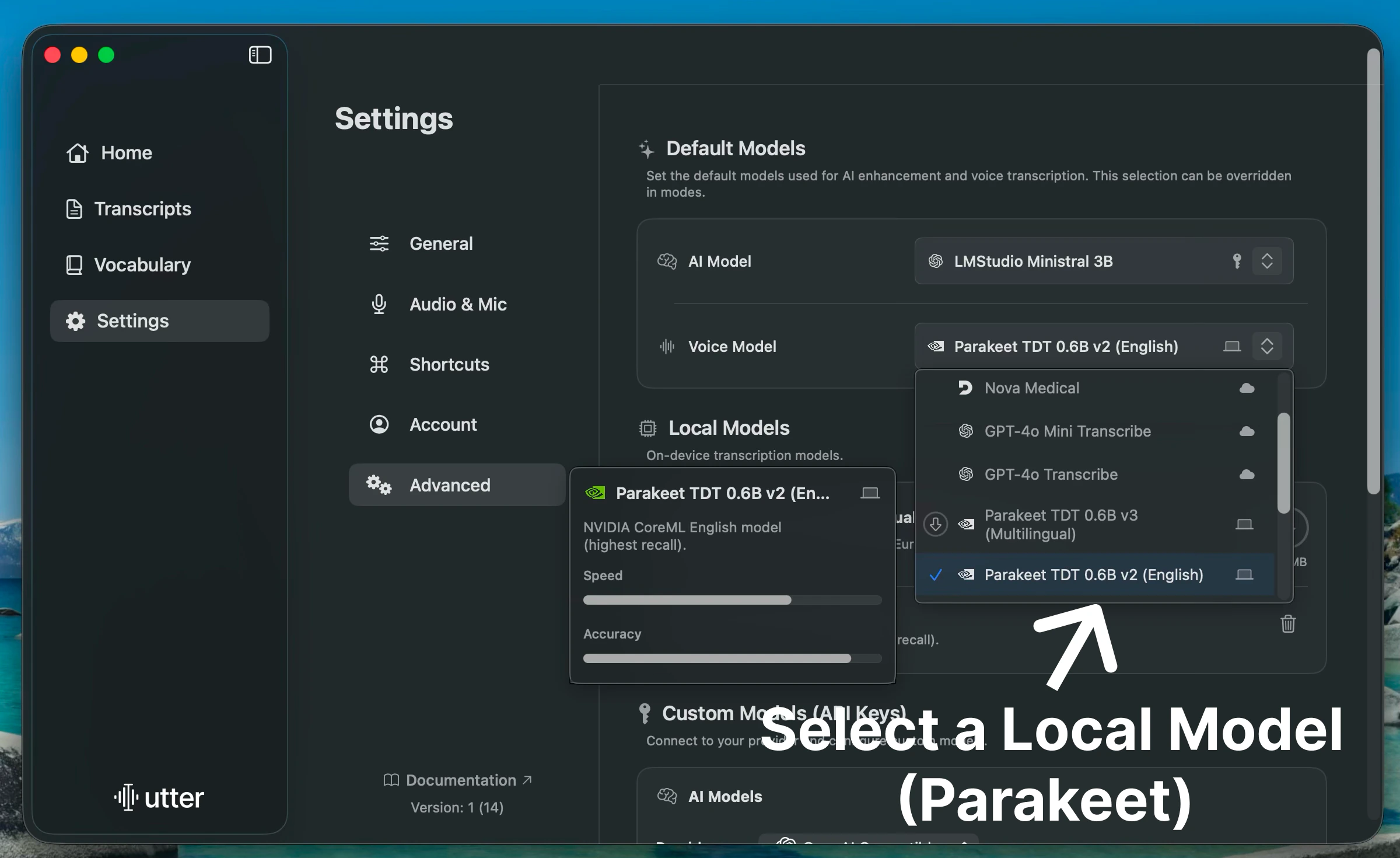
3
Let the Model Download
Selecting a local model starts its download. Wait until it is ready before disconnecting. Transcription using that model runs on your device.
A local voice model covers speech-to-text only. Cloud AI rewriting, remote servers, and syncing may still need a connection.
iPhone
1
Open the Mode Editor
Create or edit the mode you want to use for offline dictation in Utter.
2
Choose a Local Voice Model
Open Advanced Settings, then Model Selection > Voice Model. Choose a local model available on your device and allow its download to finish.
3
Check the Voice Language
In Advanced Settings > Voice Language, choose a language supported by that model. Save the mode.
Stage 2: Use Apple Intelligence for AI Processing
Apple Intelligence is the recommended local AI model for most users. It works well for simple cleanup, short summaries, and lightweight writing help.Utter’s Apple Intelligence model integration requires macOS 26 or iOS 26 or later, compatible Apple Intelligence hardware and language settings, and a downloaded system model. Enable Apple Intelligence & Siri in your device’s settings. The picker reports when the model is unavailable or still preparing.
1
Open Advanced
On Mac, go to Settings > Advanced. On iPhone, edit your mode and open Advanced Settings > Model Selection.
2
Choose Apple Intelligence
Open the AI Model picker and select Apple Intelligence. Check any mode-specific model selection too.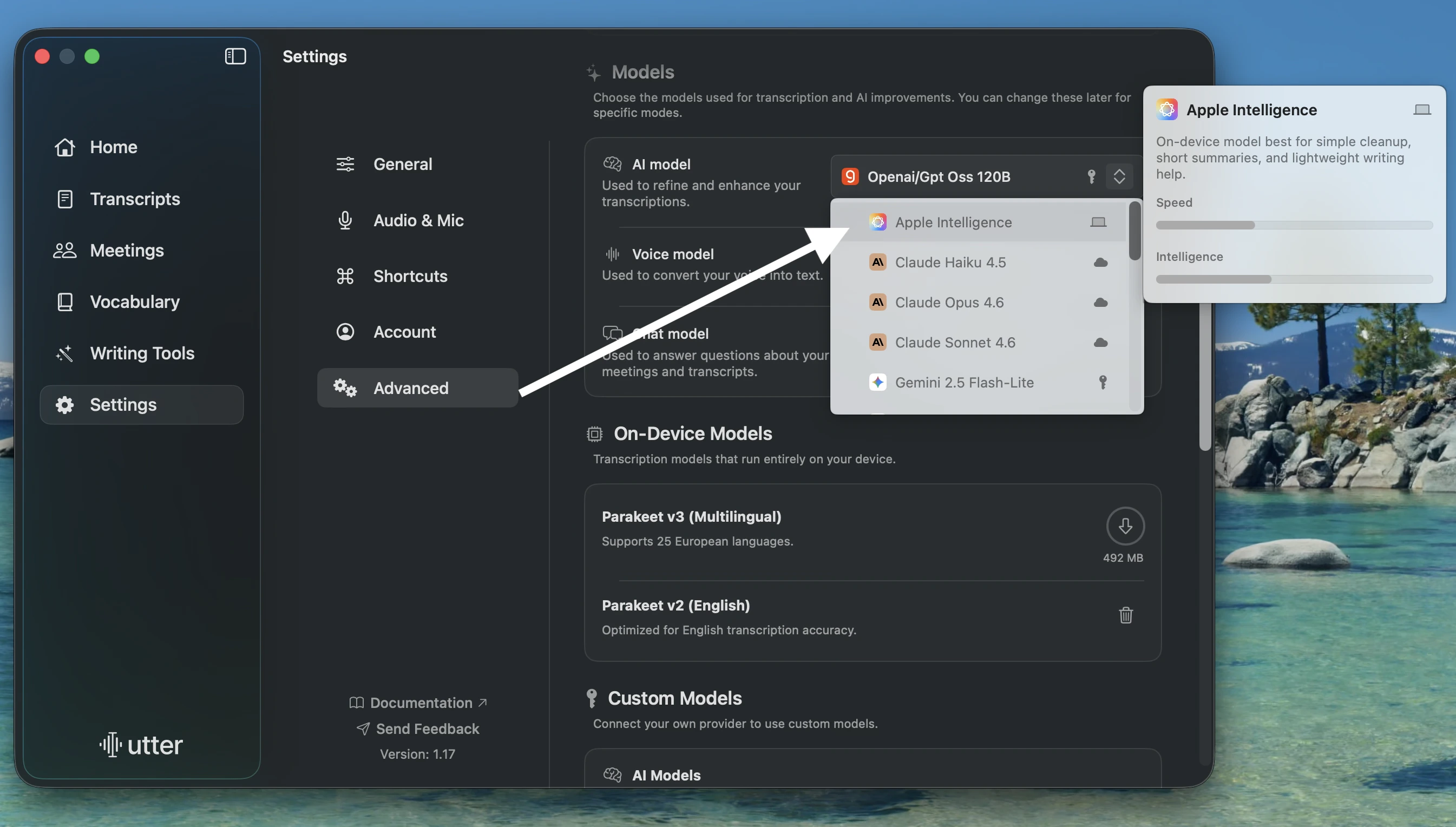
3
Test One Short Recording
Record a short sentence, then use a mode that applies AI processing, such as cleanup, summary, or writing help.
Verify That Your Whole Mode Works Offline
1
Finish Downloads While Online
Confirm both your voice model and any local AI model are ready.
2
Disconnect Your Device
On Mac, disconnect Wi-Fi and any wired network. On iPhone, enable Airplane Mode and ensure Wi-Fi is also off.
3
Make a Short Test Recording
Use your chosen mode to dictate a sentence with a name or phrase you can check.
4
Check the Final Output
Confirm transcription finishes and, if enabled, AI rewriting finishes too. Reconnect when the test is complete.
Advanced Fallback: Use LM Studio or Ollama
Use this path only if Apple Intelligence is not available on your Mac, or if you already run a local OpenAI-compatible server.LM Studio
1
Open the Developer Tab
Open LM Studio, enable Power User Mode, then open the Developer tab.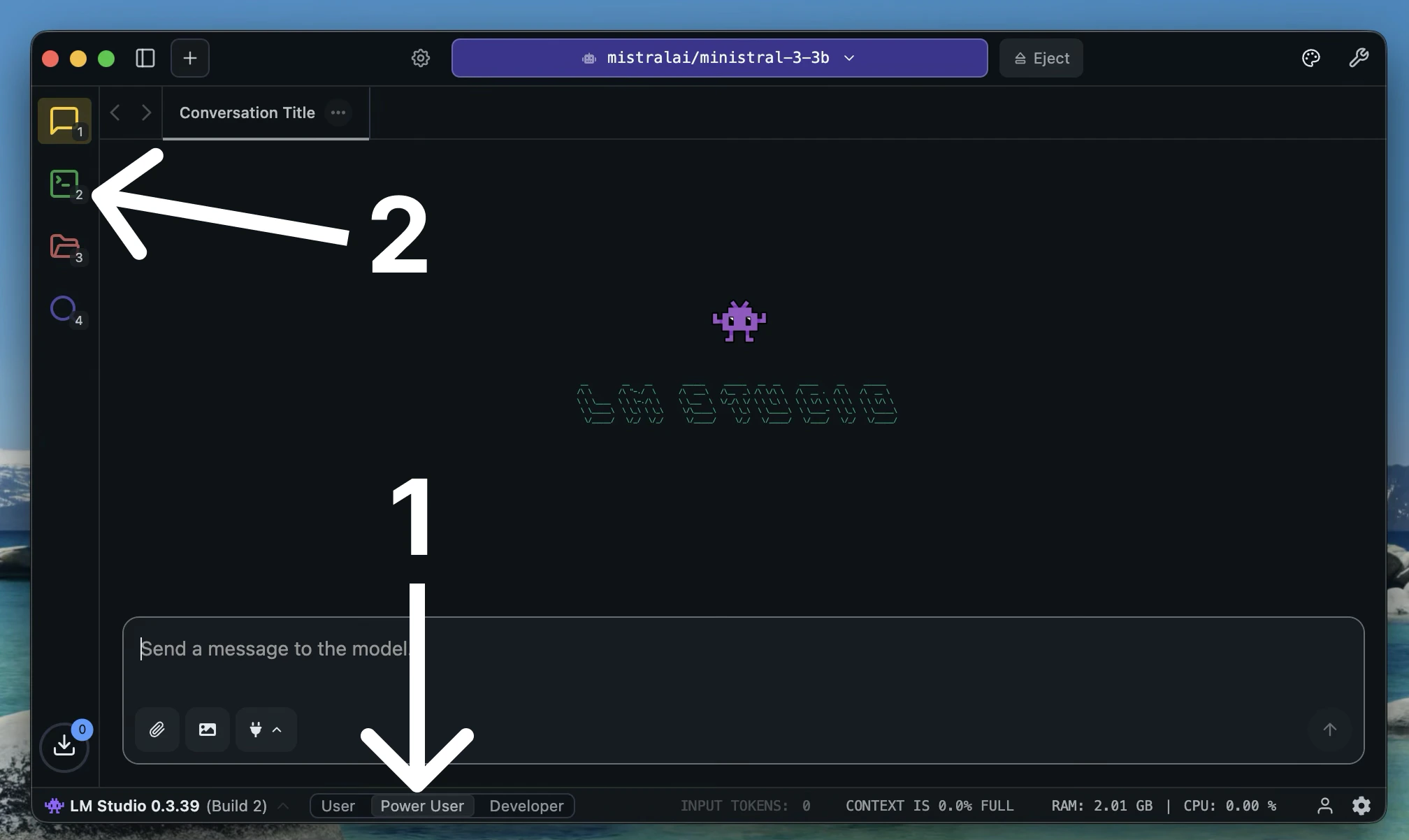
2
Load a Model and Start the Server
Make sure a model is loaded, enable the server, then copy the Model ID and Base URL from the Developer tab.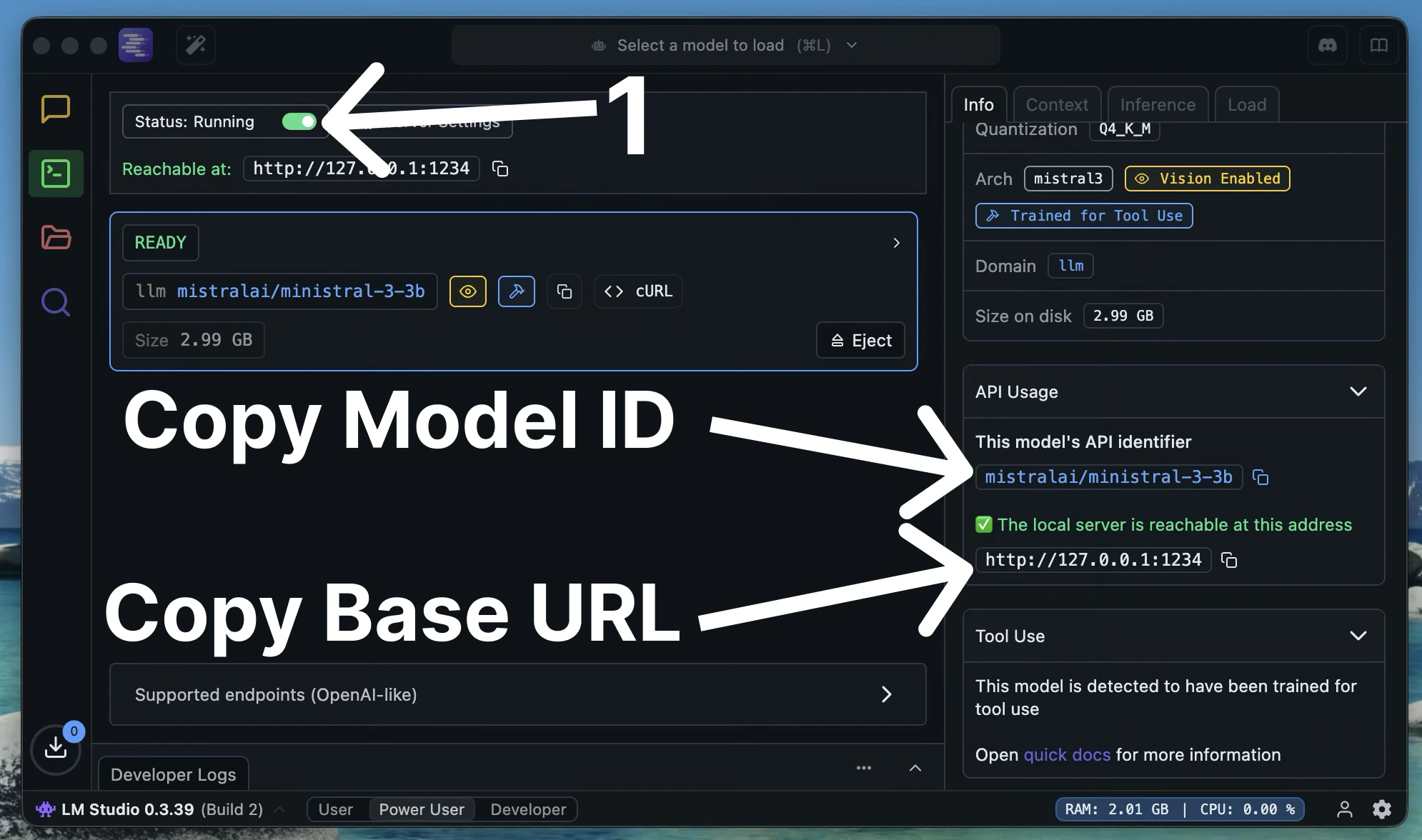
3
Open Utter Custom Models
In Utter, go to Settings > Advanced > Custom Models, then choose Custom OpenAI Compatible as the provider.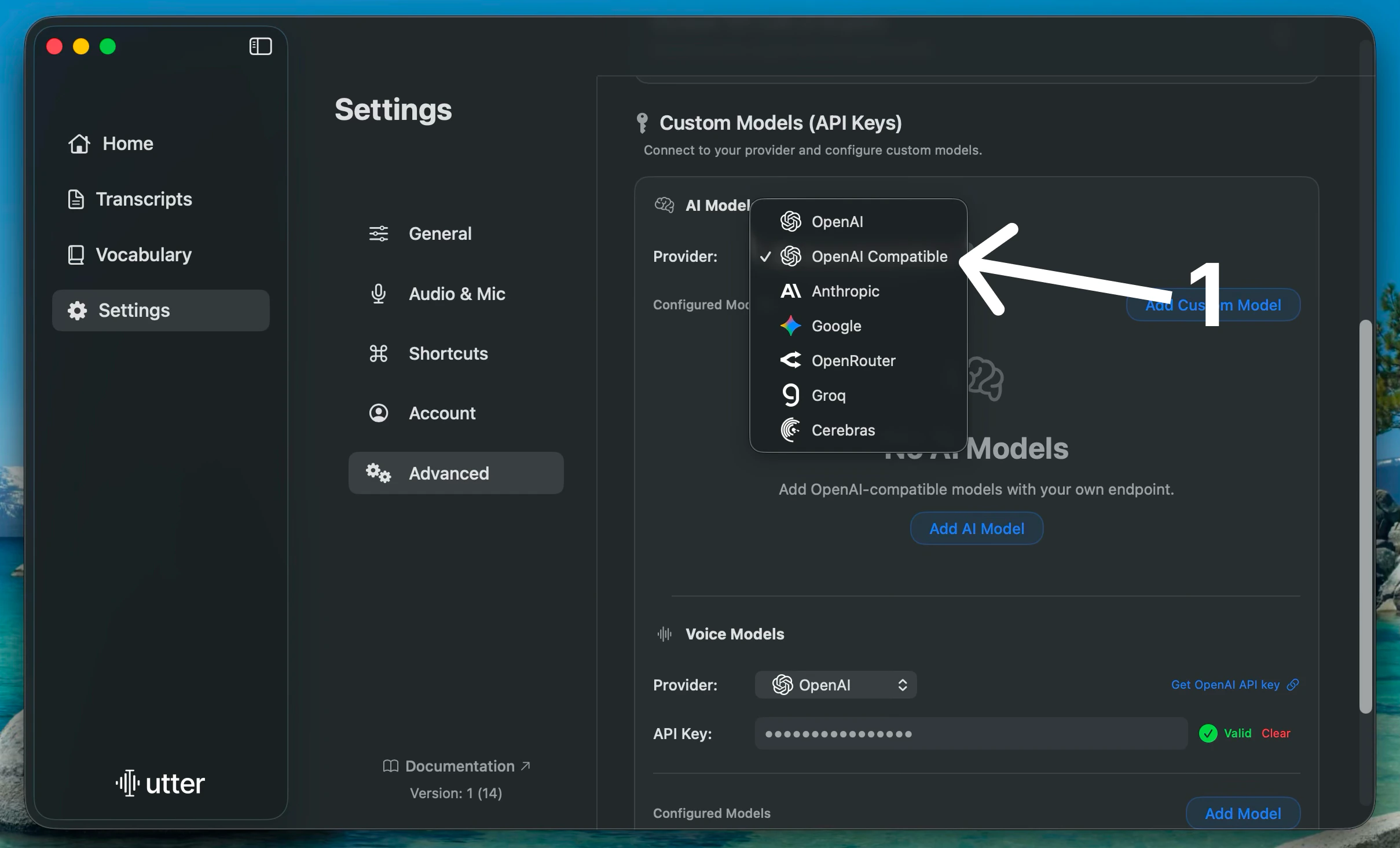
4
Add the Local Model
Click Add Custom Model. Paste the Model ID and Base URL, then click Test to verify the connection and Save.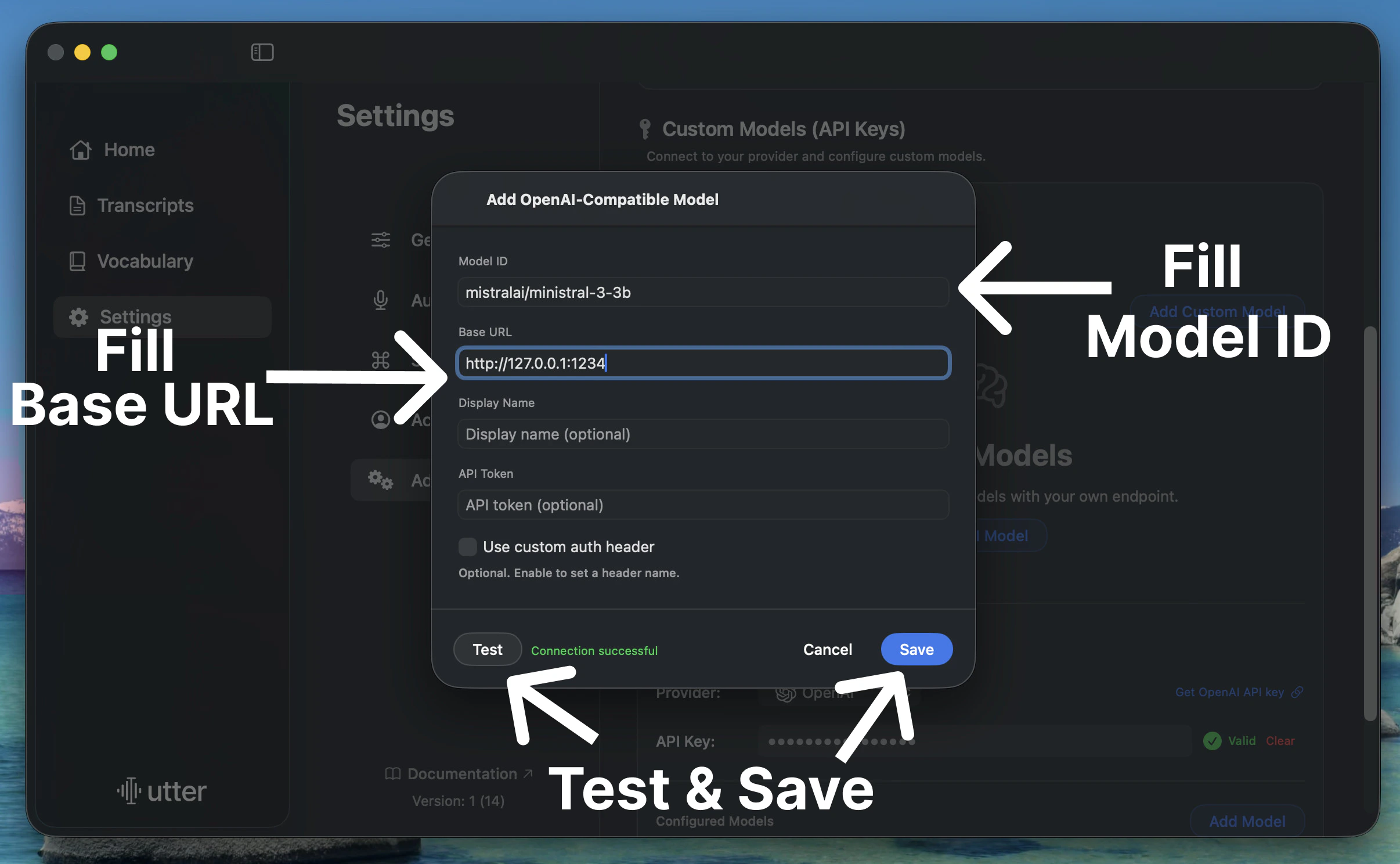
5
Set the Local Model as Default
In Default Models for AI models, select the newly created model (it has a key icon). This makes it the default for all AI post-processing.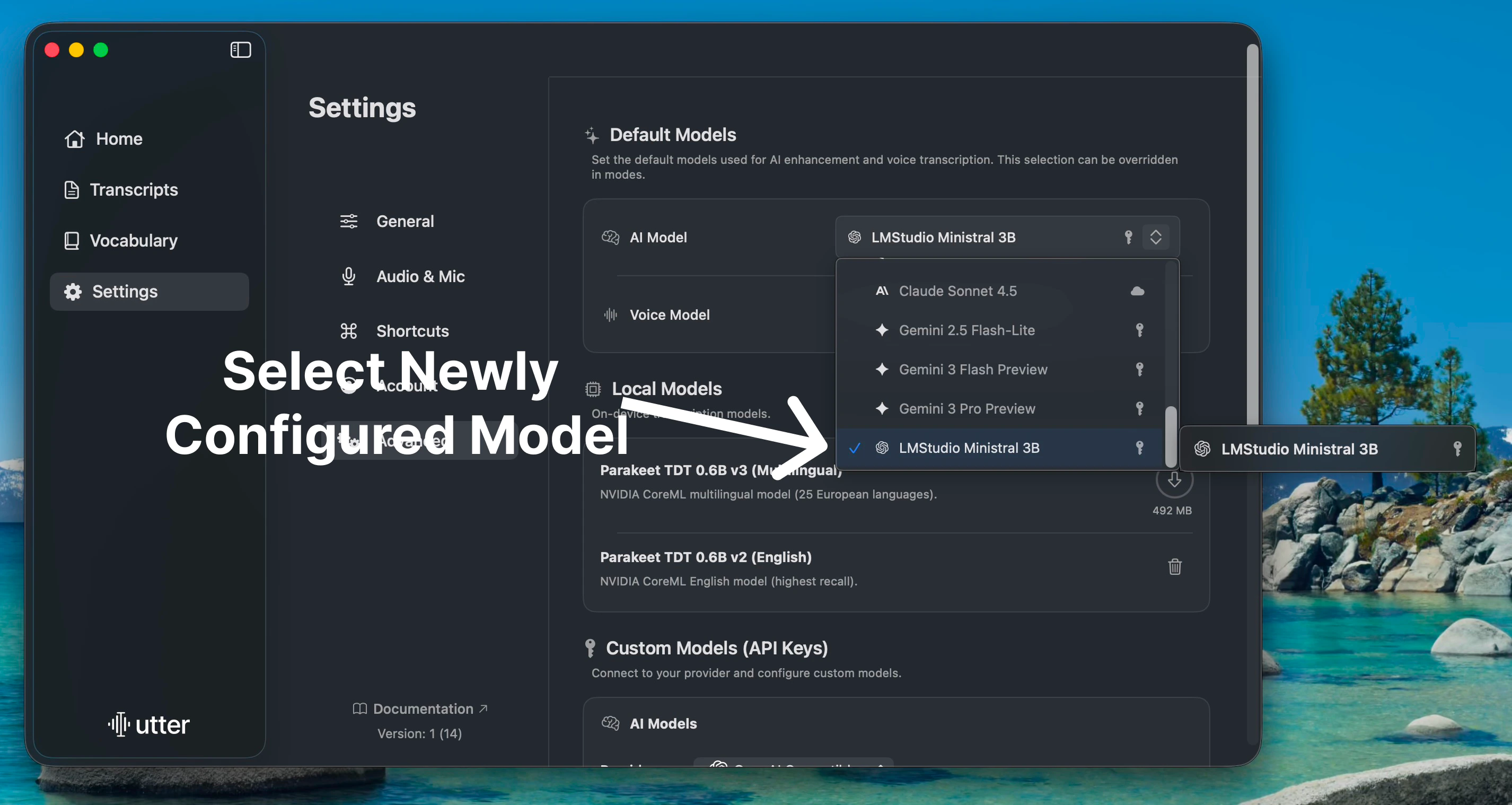
Ollama
If you already use Ollama, configure it as an OpenAI-compatible provider and follow the same Custom Models steps above. The key requirement is a local server URL and a model ID exposed by your Ollama setup.Related
Bring Your Own Keys
Connect your own model providers and API keys.
Use Utter for Free
Set up free AI models for Utter.