

- Bring your own keys: add a Deepgram key for speech-to-text and an OpenRouter key for AI processing. This guide shows that setup.
- Use local models: download models for on-device transcription and AI processing. Follow how to use Utter offline on Mac and iPhone, then test the complete mode without internet.
Overview
Utter uses two types of AI services:- Speech-to-Text: Converts your voice to text.
- AI Processing: Cleans up and formats your text.
Step 1: Set Up Deepgram (Speech-to-Text)
Check Deepgram’s current pricing and trial terms before creating an account. Credit amounts, expiry, eligible models, and usage rates can change.1
Create a Deepgram Account
Go to console.deepgram.com and review the account and trial terms before signing up.
2
Create an API Key
Go to Settings > API Keys and click Create a New API Key.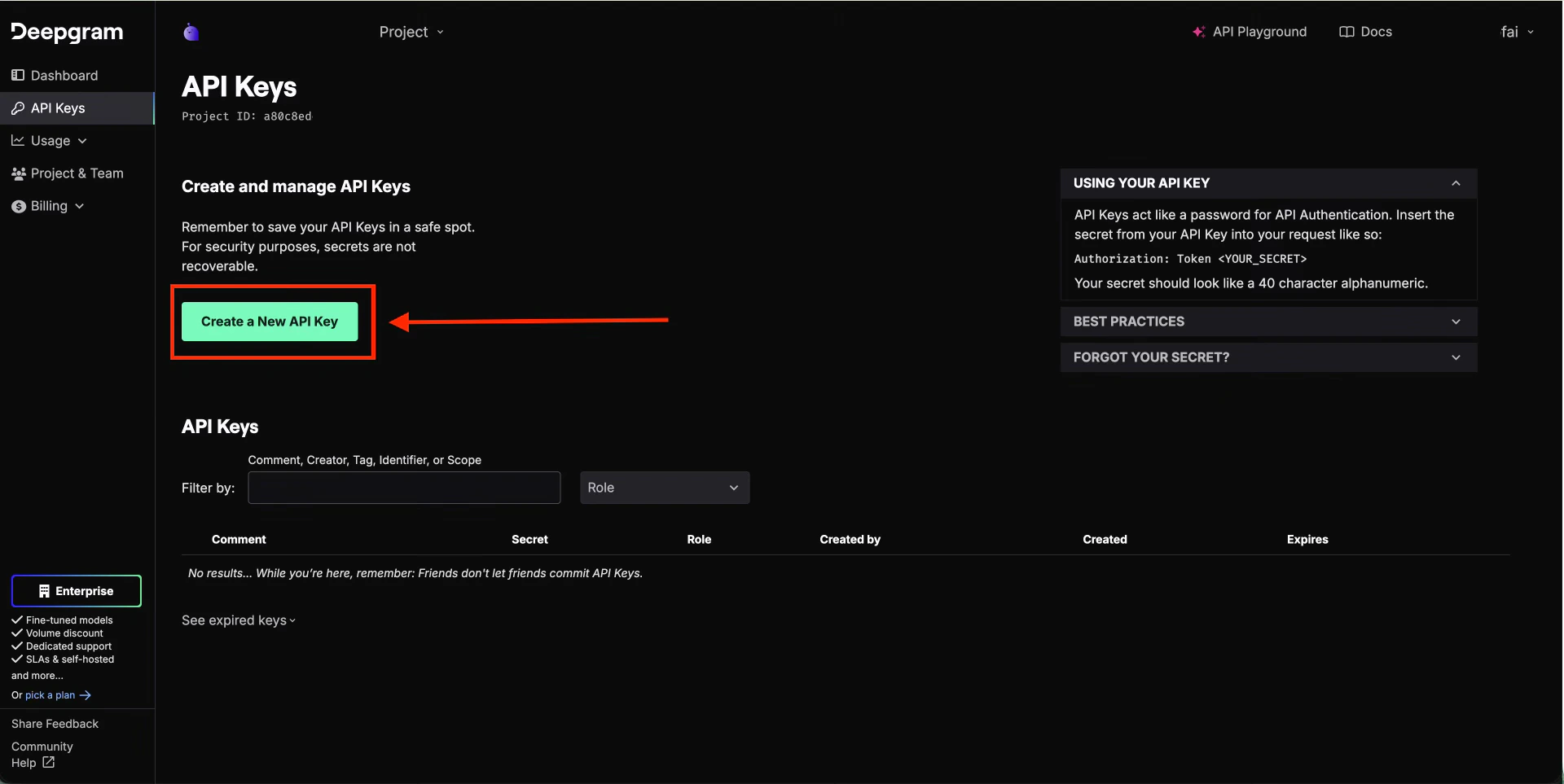
3
Name Your Key
Give it a name like “Utter”.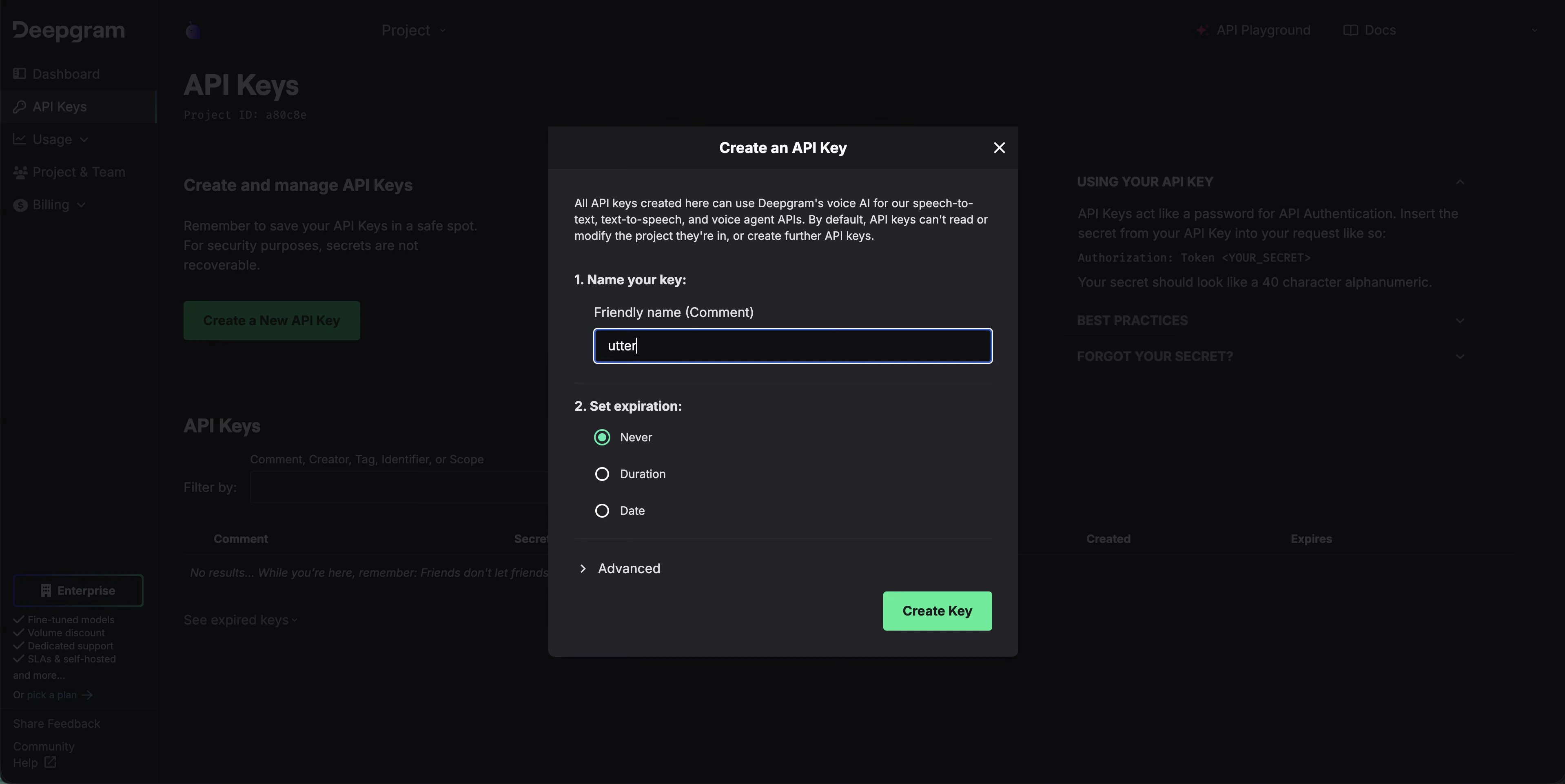
4
Copy the Key
Copy the key immediately - you won’t be able to see it again.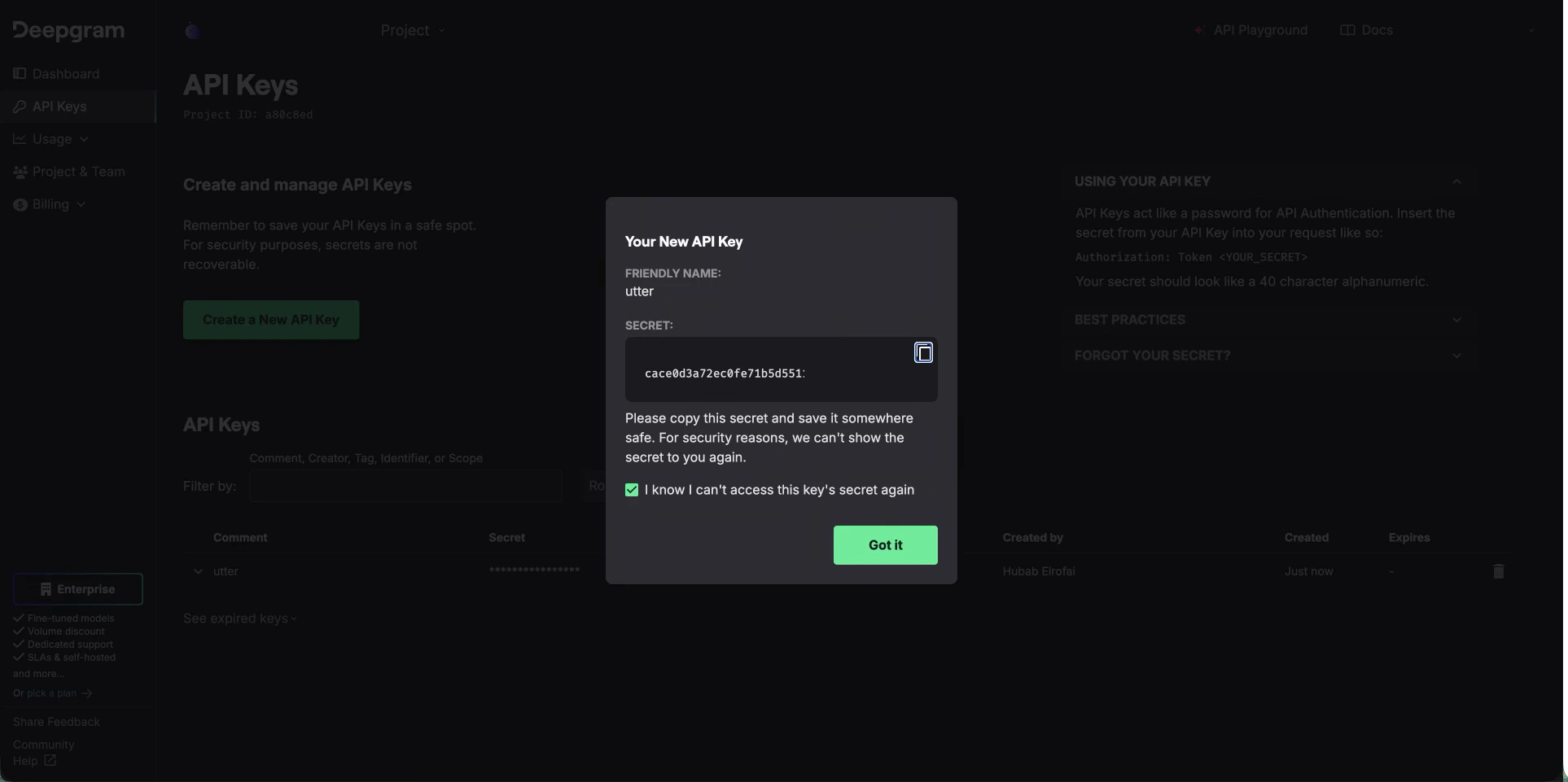
Trial credits are not the same as unlimited usage. Check the balance, expiry, selected model’s rate, and billing settings in your provider account before a long recording.
Step 2: Set Up OpenRouter (AI Processing)
OpenRouter provides access to free AI models for text processing.1
Create an OpenRouter Account
Go to openrouter.ai and sign up.
2
Open Settings
Click your profile menu and select Settings.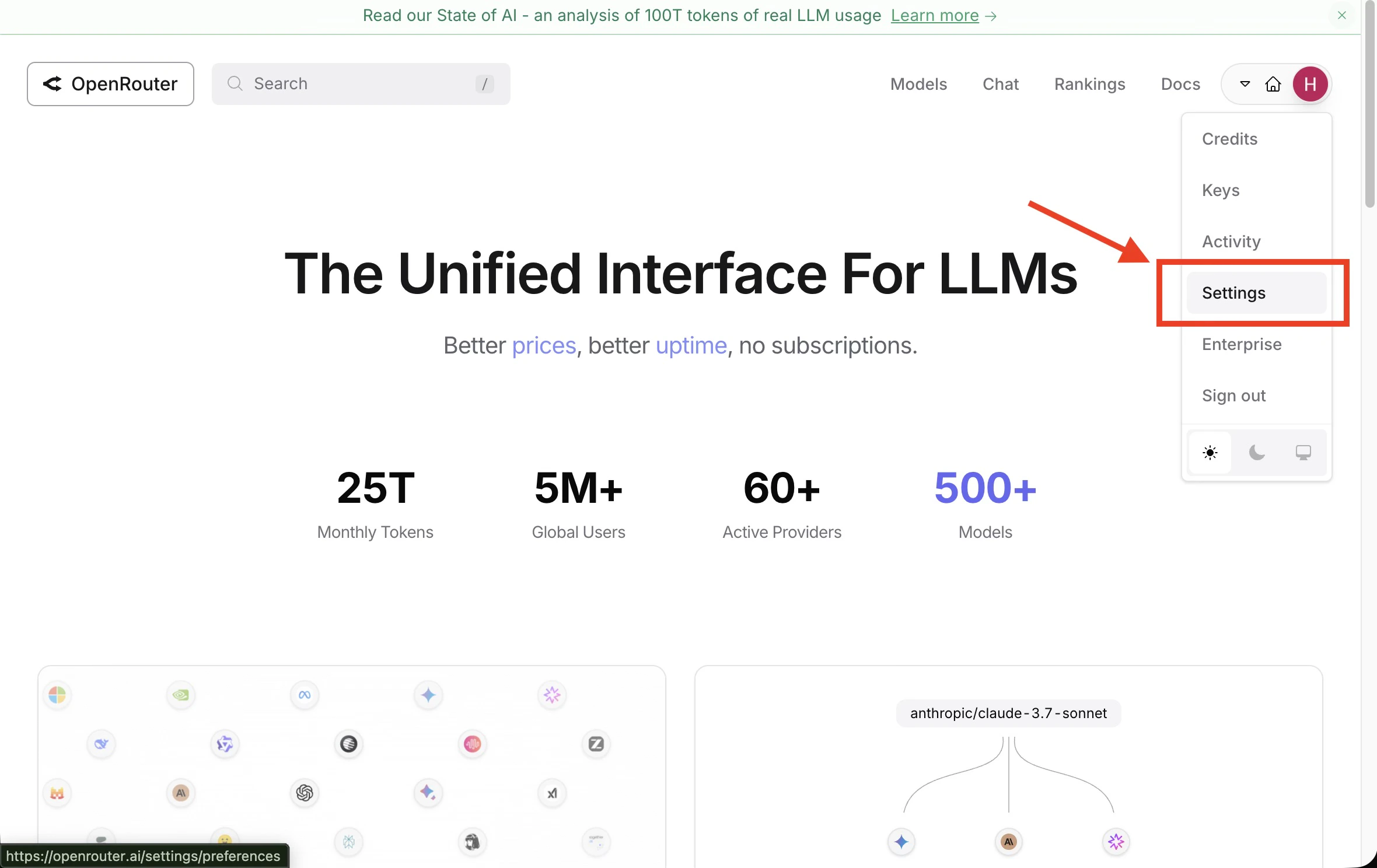
3
Create an API Key
Navigate to Keys and click Create Key.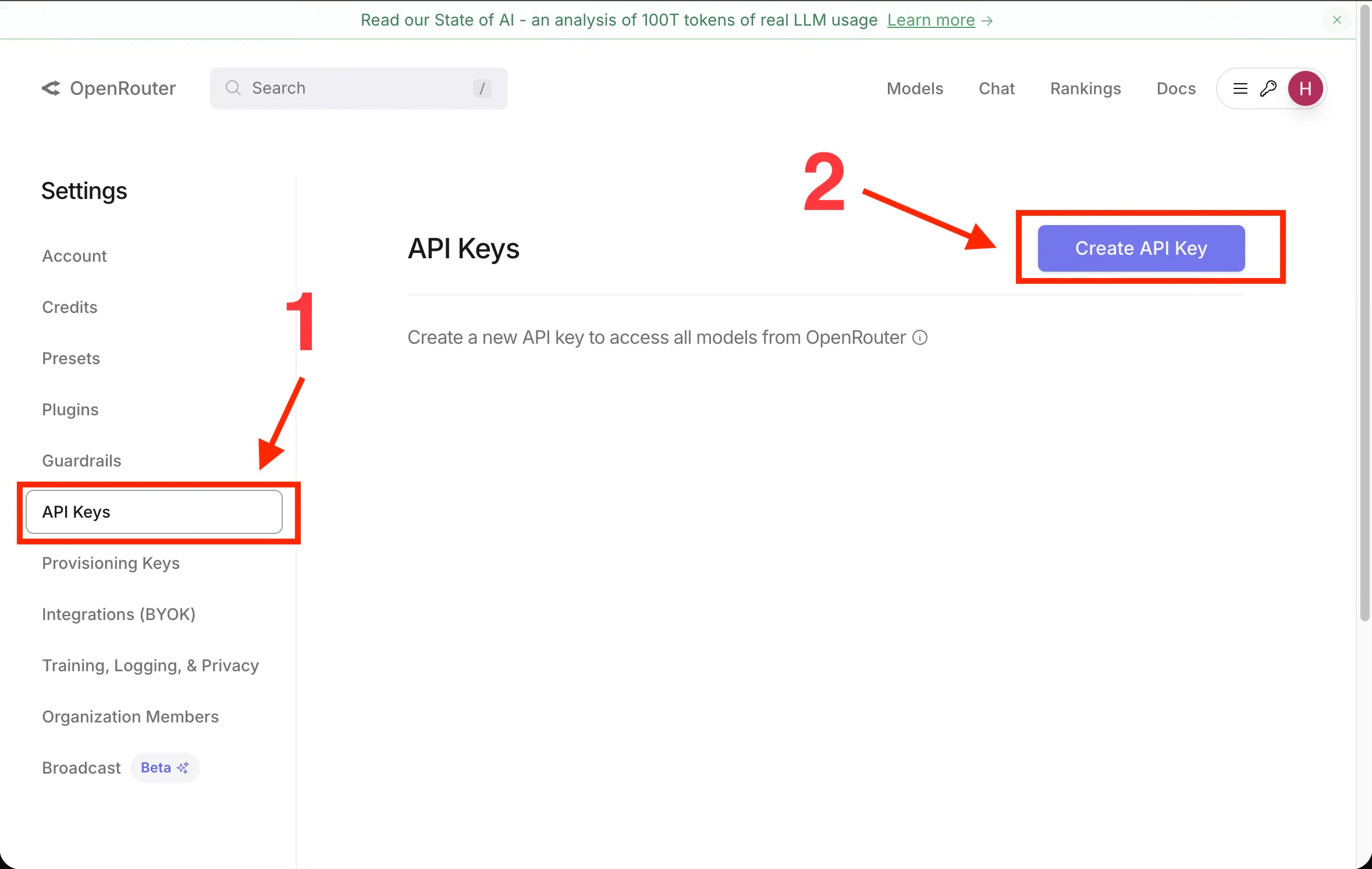
4
Name Your Key
Give it a name like “Utter”.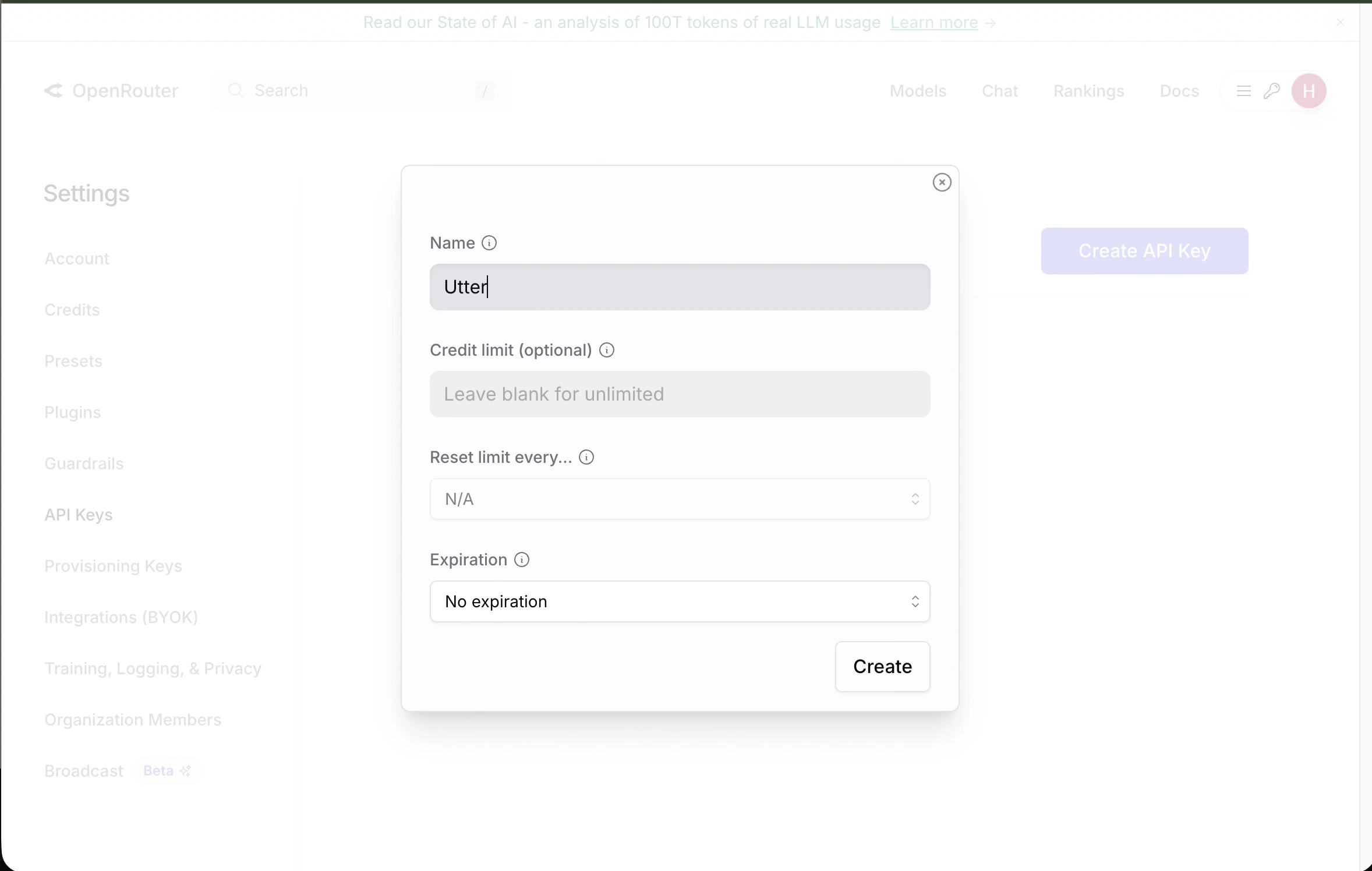
5
Copy the Key
Copy your API key.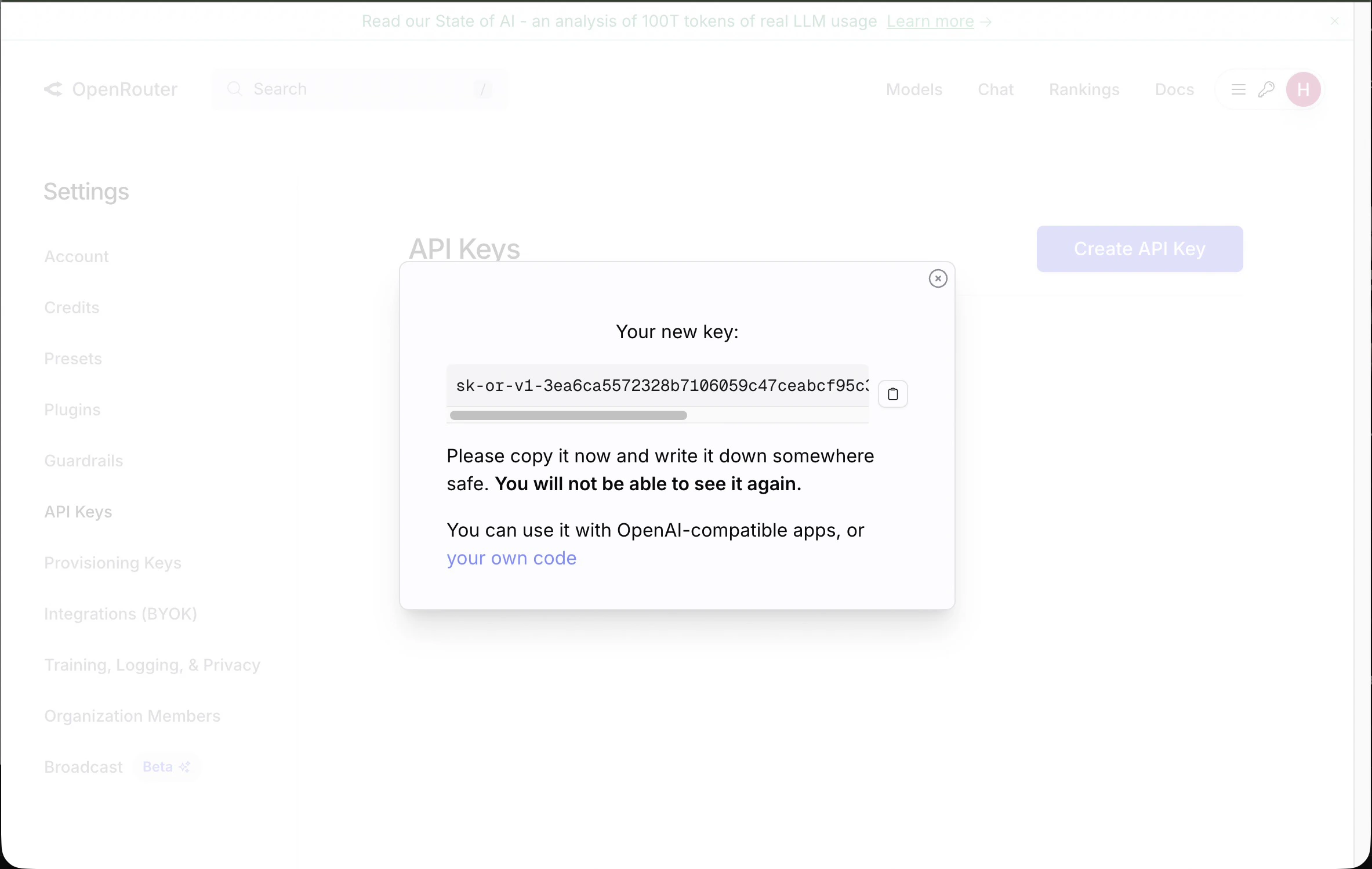
6
Enable Free Models
In Privacy Settings, enable free models.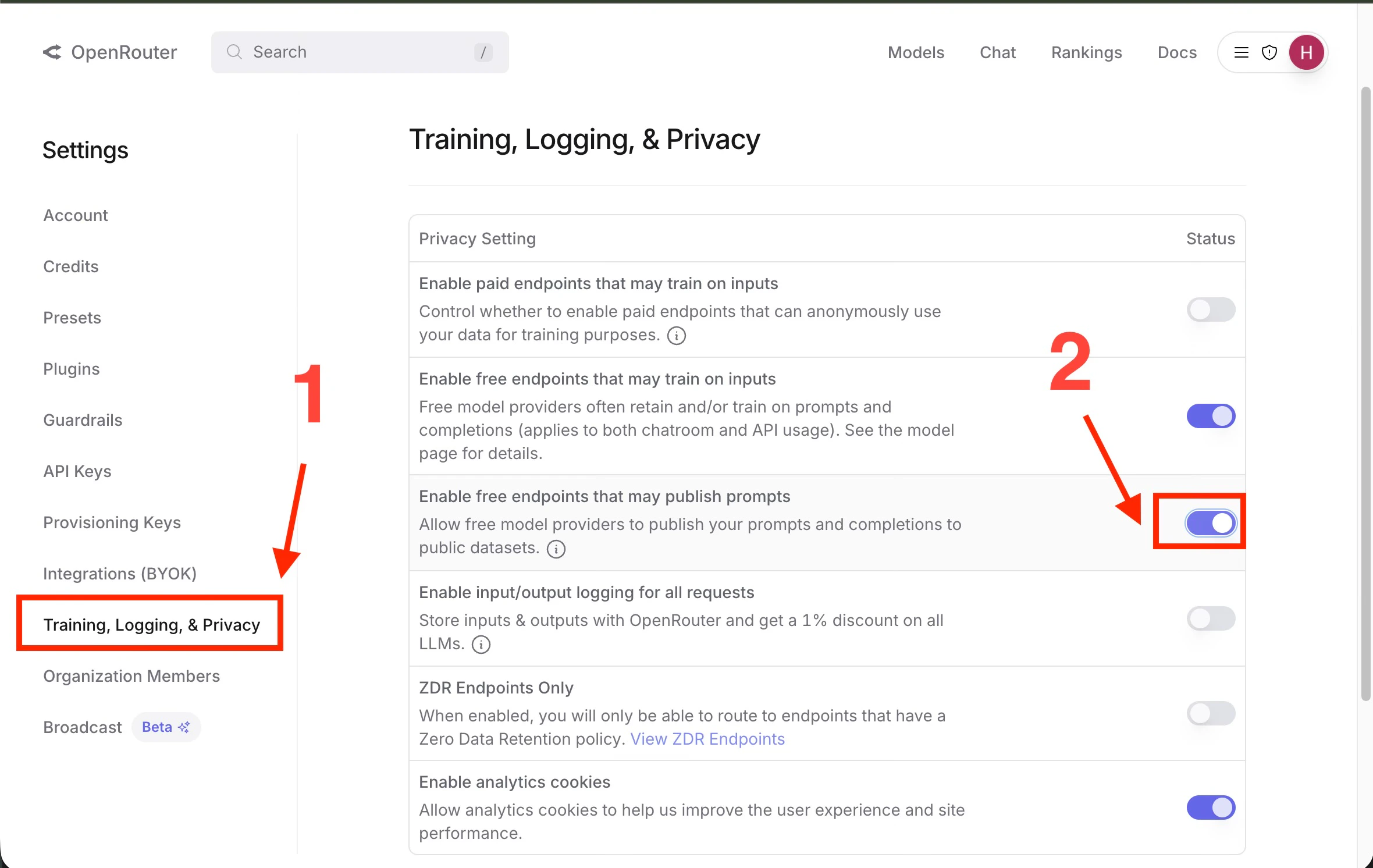
Step 3: Configure Utter
Once you have both API keys, add them to Utter. The steps and videos below show the Mac setup:1
Open Utter Settings
Open Settings > Advanced in Utter.
2
Add Deepgram Key
In Voice Models, choose Deepgram as the transcription provider and paste your Deepgram API key in its key field.
3
Add OpenRouter Key
In AI Models, choose OpenRouter as the AI provider and paste your OpenRouter API key in its key field.
Choose and Test a Free Model
Choose a currently available free model in your provider account, then select it in Utter. Availability and rate limits change; do not assume an older model name still has a free endpoint. Test a short recording with the formatting instructions you actually use. Check names, punctuation, and whether the output follows the mode. If the model is unavailable or rate-limited, choose another available model or use the offline setup rather than repeatedly retrying a long recording.Free Setup Options
FAQ
Is this really free?
Is this really free?
Local models avoid per-minute provider charges. You can also use BYOK without upgrading Utter, but the provider’s pricing, credits, and rate limits still apply.
Which free setup should I choose?
Which free setup should I choose?
Use this guide if you want to bring your own keys. Use Use Utter Locally if you want to run local models.
Are free models as good as paid ones?
Are free models as good as paid ones?
Free local and hosted models work well for many AI text-processing tasks. Paid models may be faster, larger, or more accurate for complex formatting and long documents.
Is my data safe with BYOK?
Is my data safe with BYOK?
BYOK uses your chosen providers, whose data policies apply. Recordings and transcripts may remain in your Utter history. Choose on-device models when you need an offline processing path.
Alternative: Just Use Deepgram
If you only need basic transcription without AI formatting:- Set up Deepgram (as above)
- Don’t set up an AI provider
- Test transcription and check your Deepgram usage and credit balance
Related
Use Utter Locally
Download compatible local models and verify offline dictation.
Bring Your Own Keys
Connect your own model providers and API keys.