

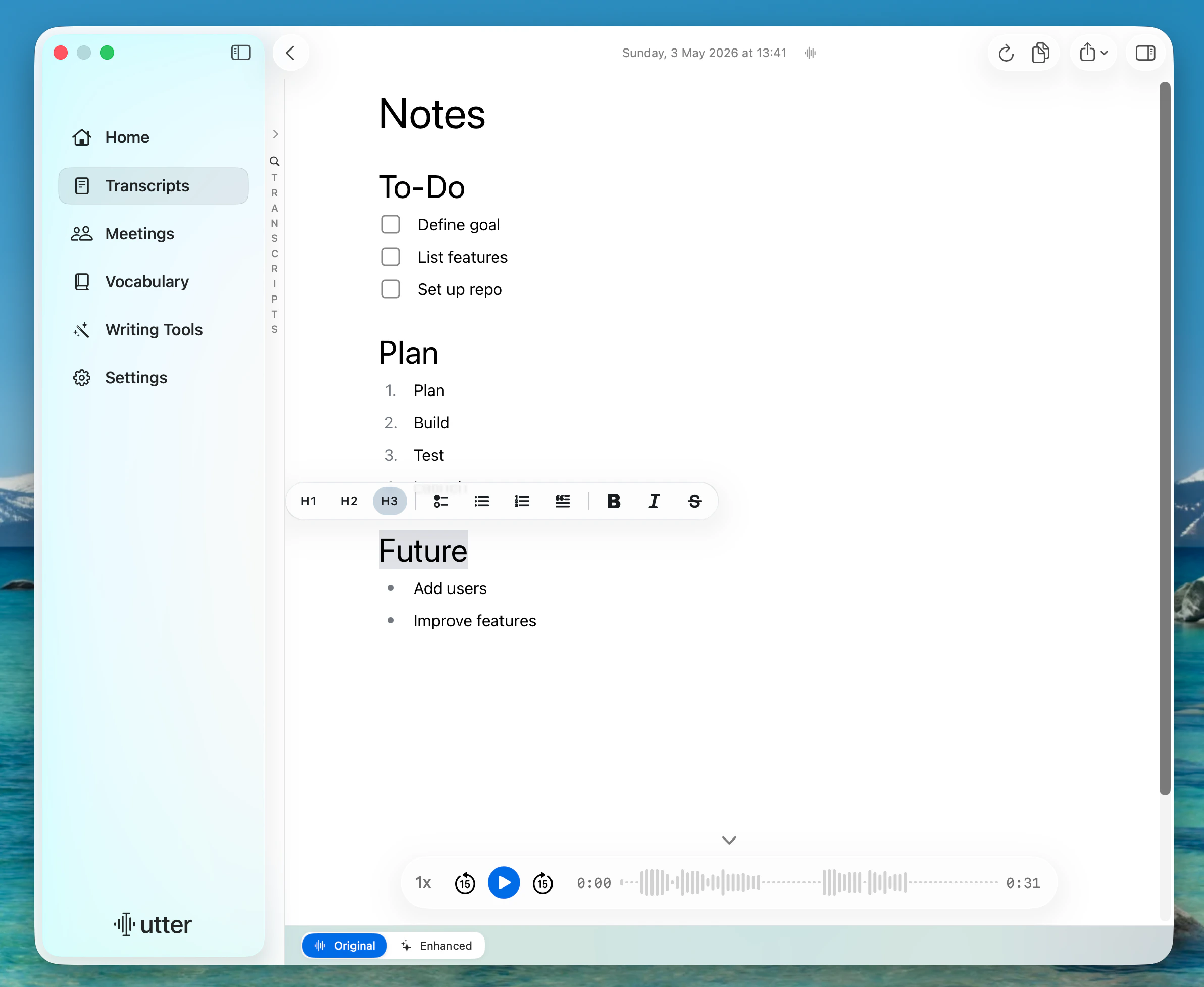
- Headings
- Bullet lists
- Numbered lists
- Checklists
- Quotes
Edit Voice and AI Text In-App
1
Open Transcripts
Go to Transcripts from the sidebar.
2
View Your Transcript
Select the transcript you want to view or edit.
3
Choose Original or Enhanced
In the bottom picker, choose Original or Enhanced.
What To Expect
- Original keeps your voice transcript.
- Enhanced keeps your AI-processed output.
- You can switch between them at any time while editing.
- Your formatting stays in place the way you wrote it.
If Enhanced Is Missing
- Click Retranscribe.
- Pick a mode that uses AI processing.
- Re-open Enhanced after retranscription completes.