

Turn On Speaker Labels In A Mode
1
Open a Mode
Go to Home, then create a mode or edit an existing mode.
2
Open Mode Settings
In the mode editor, open Other Settings.
3
Enable Speaker Labels
Turn on Speaker labels.
4
Save and Transcribe
Use that mode to record or transcribe.
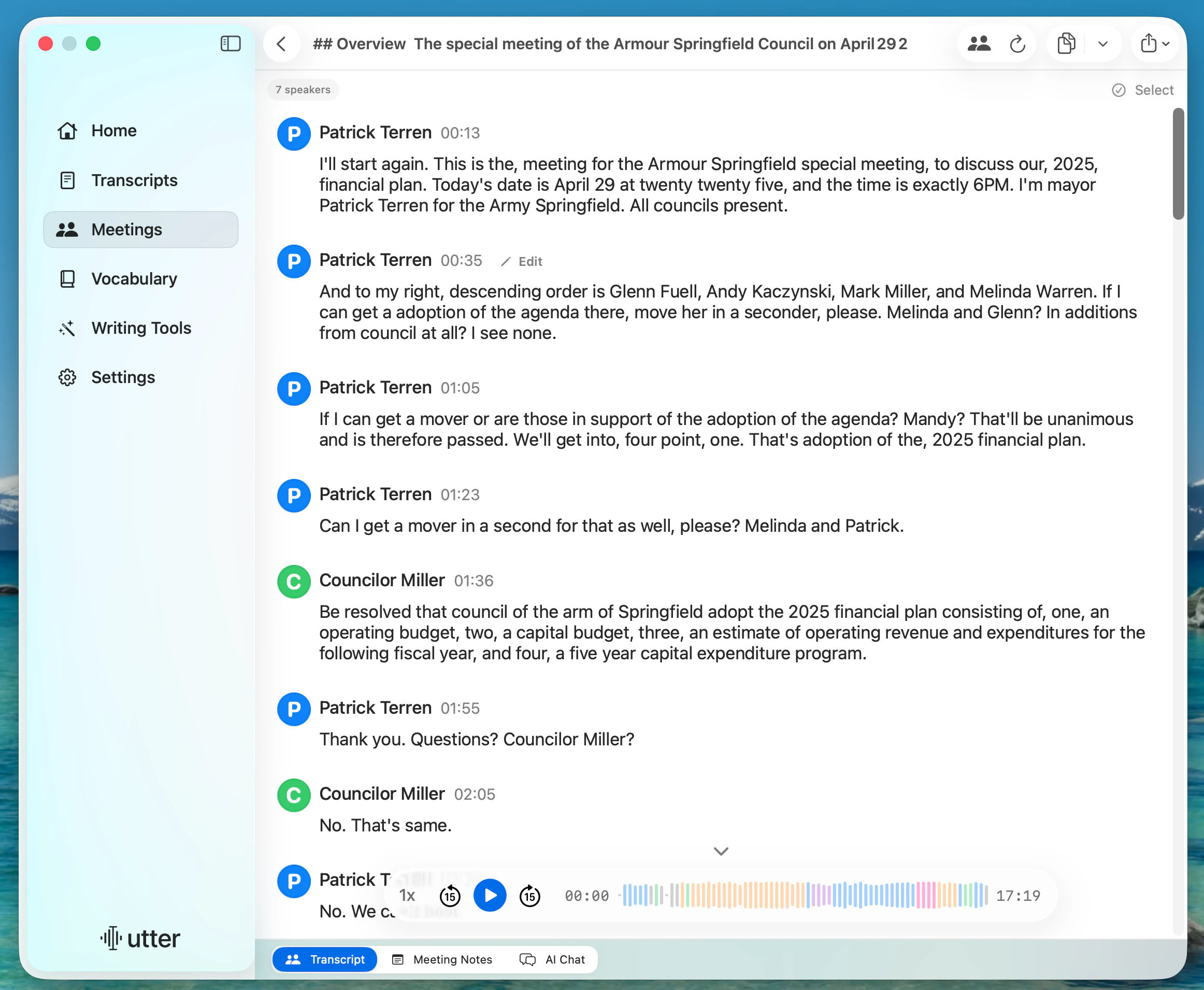
Rename Speakers
1
Open Transcript
Go to Transcripts and open a transcript with speaker data.
2
Open Speaker Editor
Click Edit Speakers in the toolbar.
3
Set Names
Replace default names (like
speaker_1) with real names.4
Save
Click Save Changes.
Reassign and Merge Speaker Segments
Rename a speaker when all their segments have the right voice but the wrong name. Reassign Speaker is for individual segments attributed to the wrong person. Merge Sections joins adjacent blocks; it is not a substitute for fixing who spoke.1
Switch to Speakers View
In the bottom display picker, choose Speakers.
2
Start Selection Mode
Click Select.
3
Choose Segments
Select one or more speaker segments.
4
Reassign Speaker
Use Reassign Speaker to move selected segments to an existing or new speaker.
5
Merge Sections
Use Merge Sections for adjacent segments that should be one block.
What To Expect
- Changes save in-app and update the transcript immediately.
- Speaker names and segment edits stay attached to that transcript.
- You can switch between Original, Speakers, and Enhanced views from the bottom picker.
If Edits Are Disabled
- Confirm this transcript was created with Speaker labels enabled.
- Confirm the transcript has speaker segments (not just a single text block).
Check Speaker Edits Before Sharing
- Review one section for each speaker against the source recording.
- Check interruptions and short replies, where speaker assignment is easiest to confuse.
- Reopen the transcript to confirm your names and segment assignments are saved.
- Check any exported file or separately generated meeting summary too. Do not assume an earlier export or summary updates when you edit the transcript.
Related
Meeting Recordings
Record meetings with speaker labels, notes, and AI chat.
Note Editor
Format and clean up transcript text in Utter.